
What it is
The search box sits in the top bar on every office screen. Type a name, an email, or a record number like J-1001 or E-1002, and Crulex shows matching clients, jobs, estimates, invoices, tasks, appointments, payments and screens, grouped by type. You only see what your role is allowed to see.
When to use it
- A customer calls or emails and you need their record fast.
- Someone gives you a job, estimate or invoice number.
- You want to open a screen (for example Settings or Reports) without hunting through the menu.
Before you start
- You need to be signed in to the office app. Search only looks inside your own company.
- Some results need permission: amounts show only if your role can see prices, and leads only if you can see leads.
Steps
- Click the search box in the top bar (it says Search clients, jobs, invoices, pages), or press Ctrl K (⌘ K on a Mac).
On a phone: Tap the magnifying glass in the top bar.
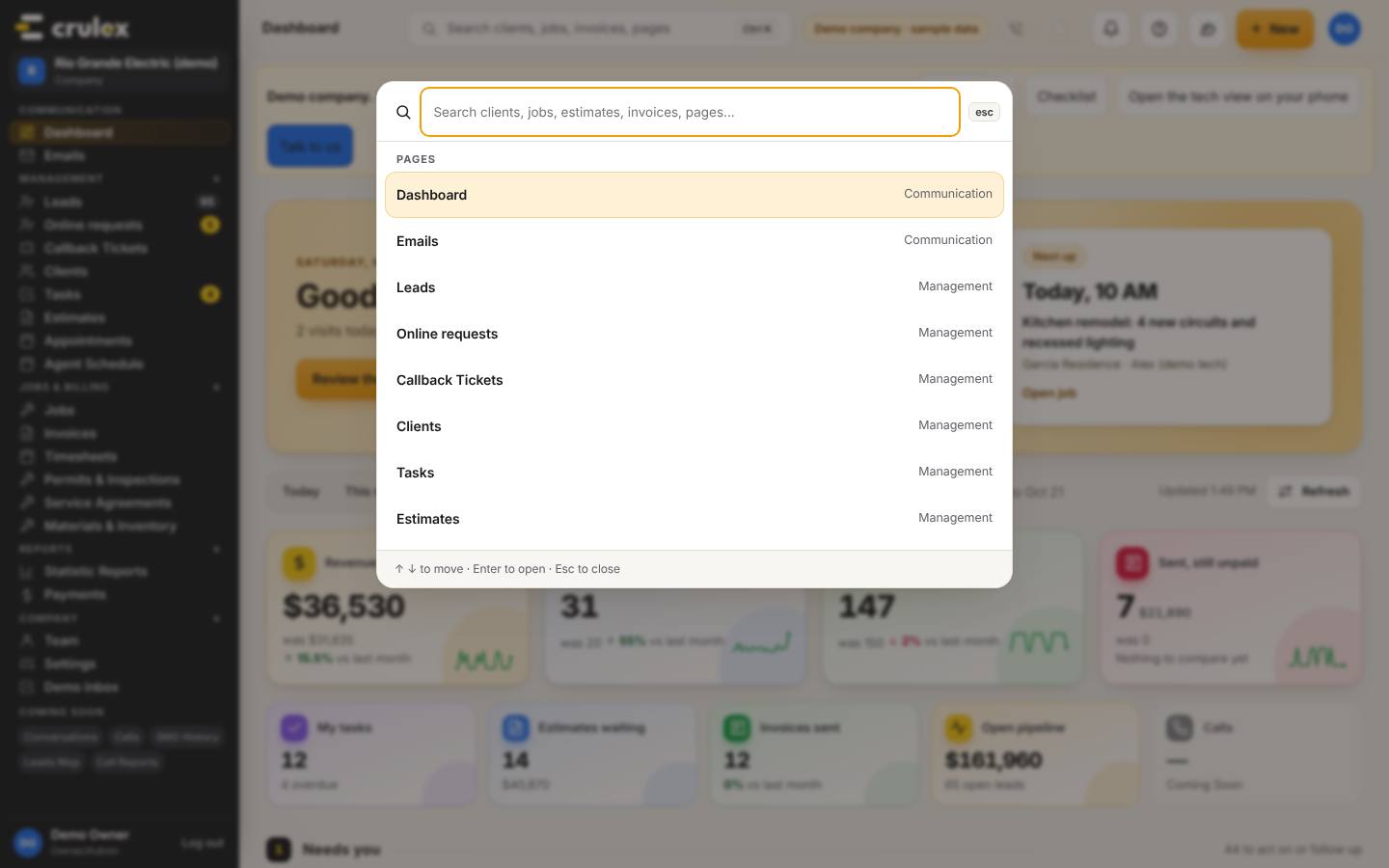
The search panel open from the top bar - Type at least a few letters of a name, an email, or a record number. Results appear as you type, grouped under Clients, Jobs, Estimates and the other types.
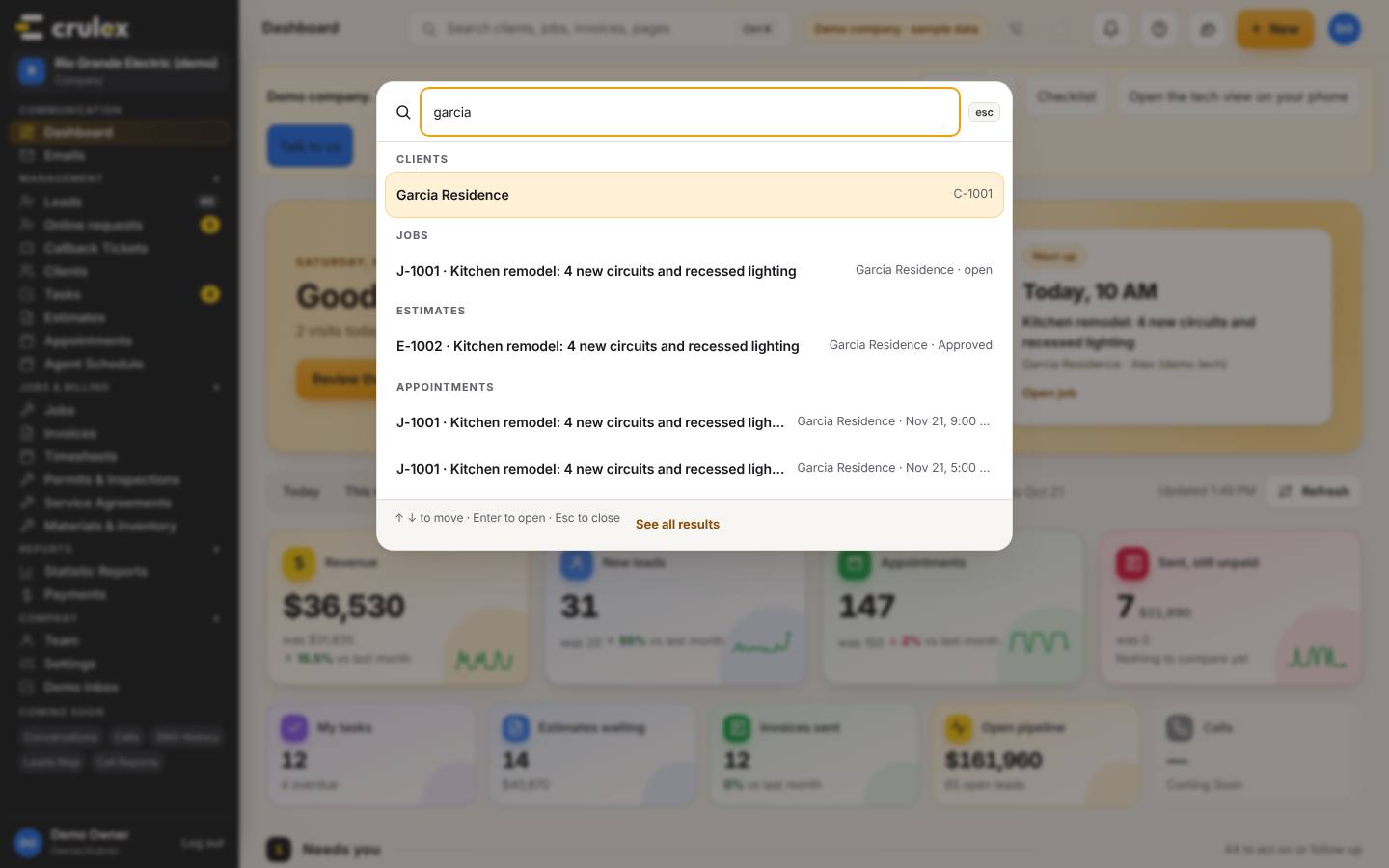
Search results for "garcia" grouped by clients, jobs and estimates - Click a result to open it. Use the arrow keys and Enter if you prefer the keyboard.
- To see more than the first few matches, click See all results at the bottom of the panel. That opens the Search page with up to 25 matches of each type.
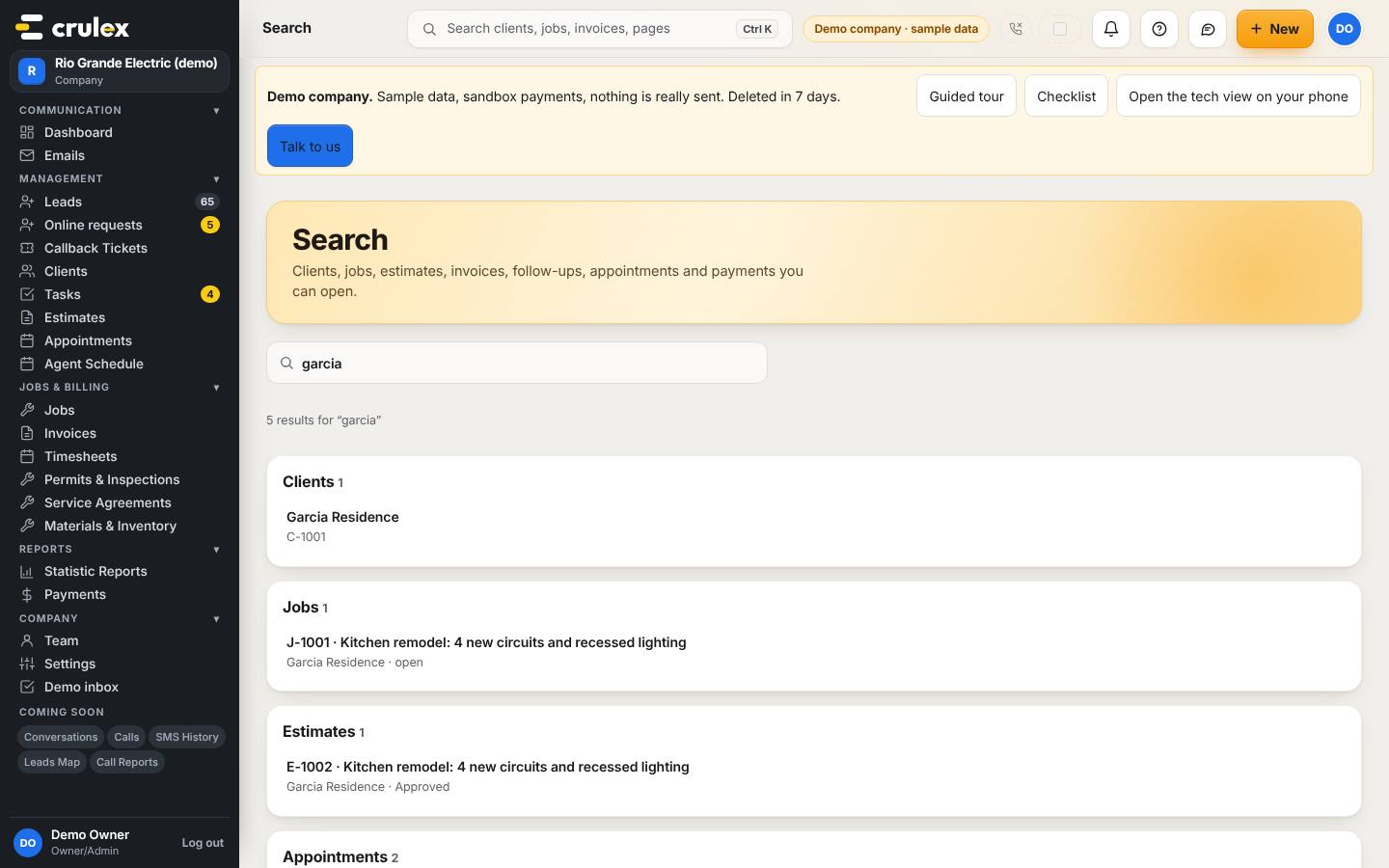
The Search page showing every match for "garcia"

How to check it worked
- The record you clicked opens, and its name or number matches what you searched for.
- On the Search page, each group shows a count next to its name (for example Clients 1).
Common mistakes
- Searching by phone number. Phone numbers aren't stored yet, so Crulex shows "Searching by phone number isn't available yet" instead of results. Search by name, email or record number.
- Expecting to find another company's records. Search only covers the company you are signed in to; switch company from the avatar menu first.
- Typing a full sentence. Short words work best: a last name, a street name, or a number.