
What it is
PayNova is Crulex's payment processing partner. The application lives in Settings, PayNova card processing. You fill in your deal details and the owner's information, then send it to Crulex, who checks it and sends it to PayNova for you. Sensitive answers (date of birth, Social Security number or ITIN, and the photo of your ID) are sealed the moment you save them: the page then shows only Saved · hidden, and nobody at your company can read them back. They are deleted 14 days after the application goes to PayNova.
When to use it
- You want to take card payments in Crulex and don't have a processor set up yet.
- You're switching from another card processor, or adding a new location.
Before you start
- Only the owner or an office manager can apply. Card processing applications aren't available in a demo company.
- Have the owner's details ready: date of birth, Social Security number or ITIN, home address and a clear photo of the front of a driver's license or ID.
- Only type these numbers into the application's own boxes. Never email them, text them or paste them anywhere else, including to Crulex.
Steps
- Go to Settings and click PayNova card processing in the settings menu (or click Start the application on the Apply for PayNova payments banner on the dashboard).
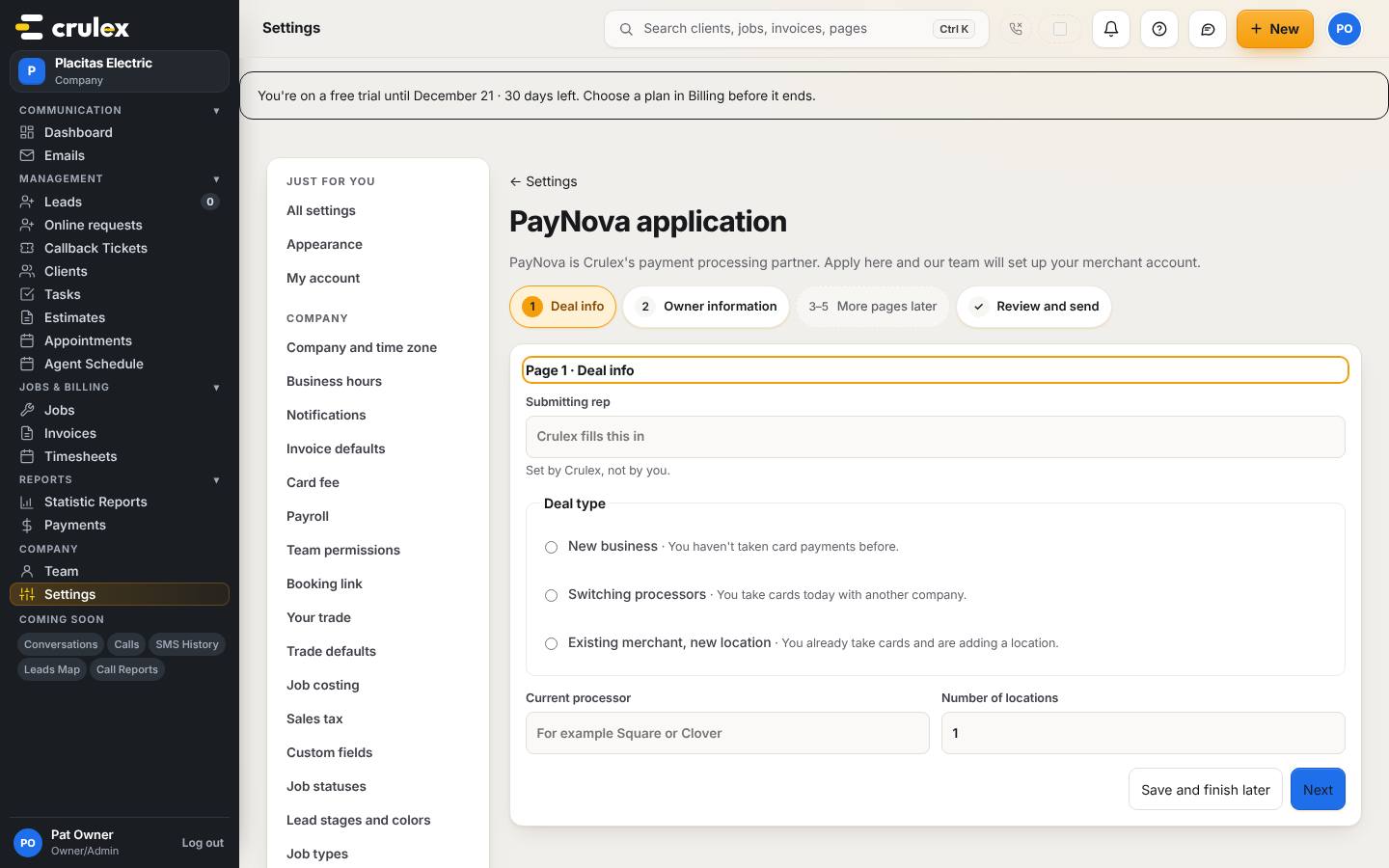
Page 1 of the PayNova application: deal type, current processor and number of locations - On Page 1 · Deal info, pick your Deal type: New business, Switching processors or Existing merchant, new location. If you take cards today, enter your Current processor. Set the Number of locations. Submitting rep is set by Crulex, not by you. Click Next.
- On Page 2 · Owner information, fill in the owner's First name, Last name, Owner title, Ownership percentage and Home address, and answer Are there additional owners?
On a phone: The pages are the same, one box under another; scroll down for the address and the ID photo.
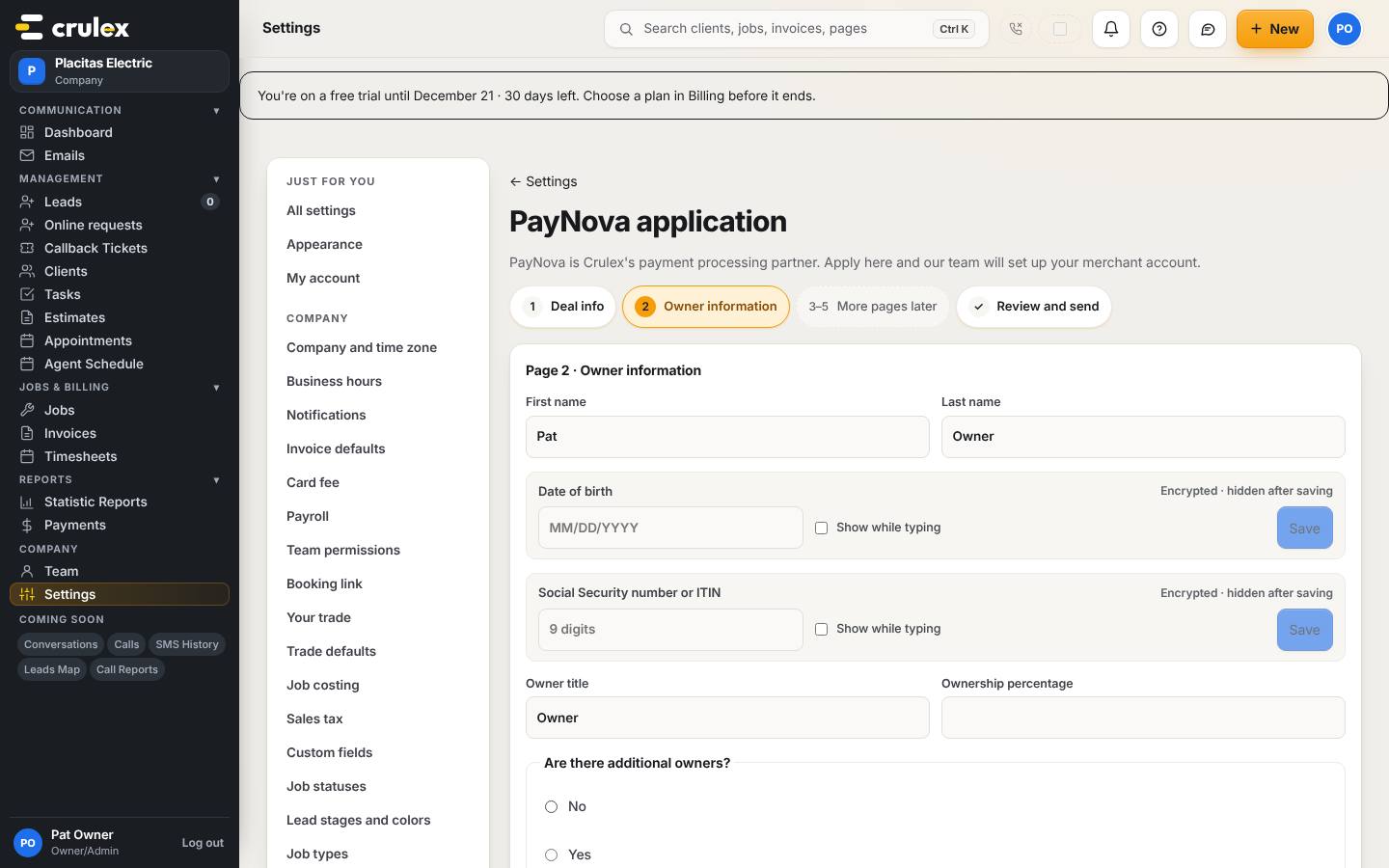
Page 2: owner information, with the sealed date of birth and Social Security number boxes - Date of birth and Social Security number or ITIN are marked Encrypted · hidden after saving. Type each one and click the Save button next to it. The box then shows Saved · hidden with a Replace button. Tick Show while typing only if you need to check what you typed.
- Under Driver's license or ID · front only, click Add a photo and choose a clear photo of the front with all four corners showing. It isn't shown again after saving.
- Click Save and finish later any time to come back to it, or Review to check your answers.
- On Review and send, fix everything listed under Still needed before you can send it, then click Send to Crulex.
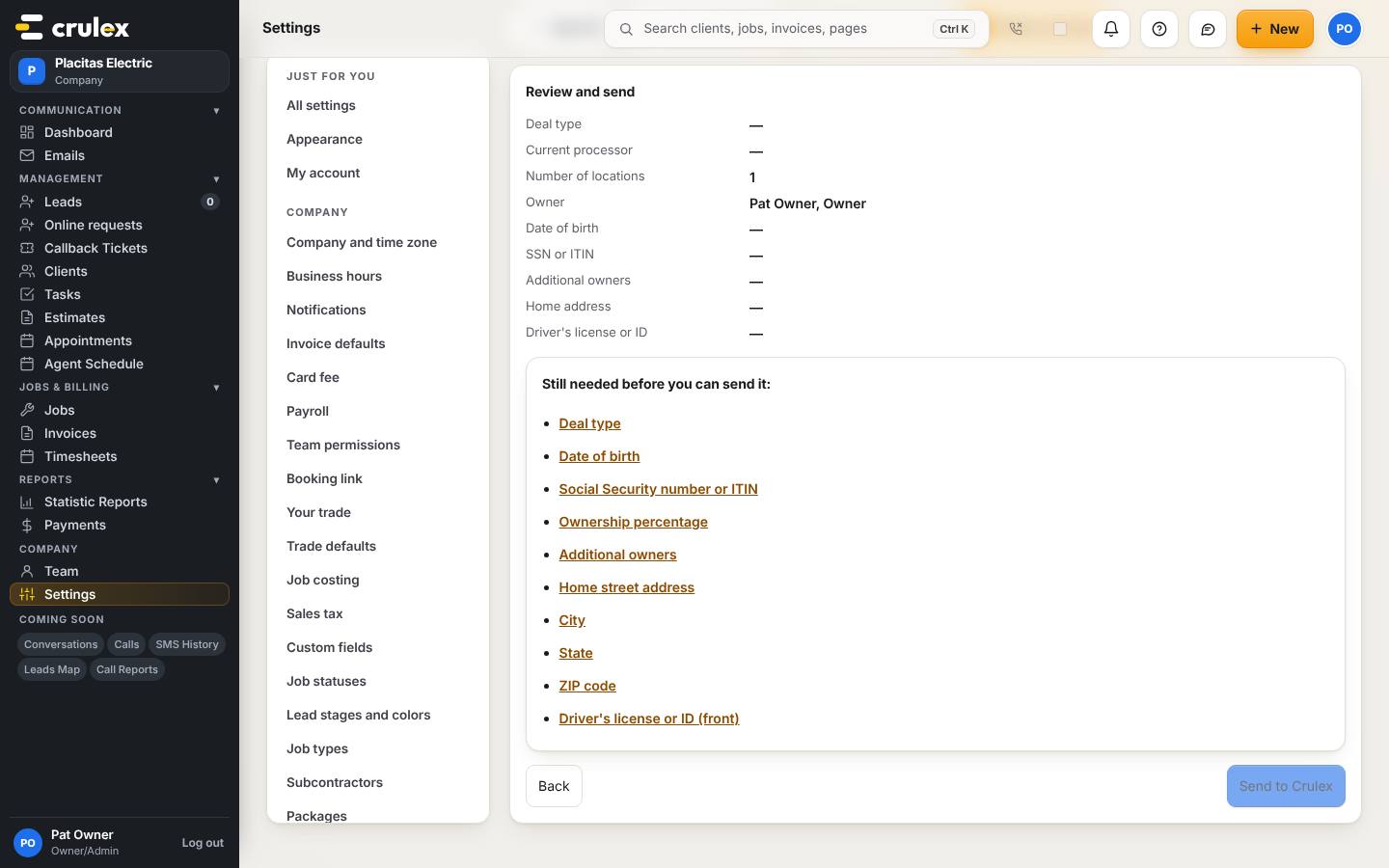
Review and send, listing what is still needed before the application can be sent

How to check it worked
- After sending, the page shows where the application is: Sent to Crulex, then Sent to PayNova, Under review, and Approved or Not approved.
- You get an email each time the status moves.
Common mistakes
- Expecting to see your answers after sending. Once sent, the page shows only the status, never the answers.
- Looking for a cell phone box. PayNova asks you for your cell phone number directly.
- Sending your Social Security number or ID photo by email to speed things up. Don't: the application is the only safe place for them.