
What it is
Every sent invoice has a secure pay page. The customer opens the link from their email and pays by card or bank account there; they type their own card details into that secure form, never you. Payments land on the invoice and its balance updates by itself. In the office you record cash and checks, email payment links, ask a customer to save a card, send statements that pay every open invoice with one link, and keep money as customer credit. The Payments screen under Reports lists everything that came in.
When to use it
- A customer pays the tech in cash or by check and you need it on the invoice.
- You want a deposit or a payment for work that has no invoice yet.
- A customer owes on several invoices and you want to send one statement with one pay link.
- You need to see what came in this month, with card fees and tips kept apart.
Before you start
- Card fees (dual pricing or a credit card surcharge) are set up for you by Crulex on your account. Settings, Card fee shows what's on; if it says no card fee is set up, the customer pays the invoice amount.
- Online card payments need your payment account switched on. Until it is, Settings, Payments says card payments aren't available, and you can still record cash and checks.
Steps
- Send the invoice (see the invoices guide). The customer opens the link, checks the amount and pays on the secure page. They can tick Save card for future use there, so you can charge that card later.
- For cash or a check, open the invoice and click Record payment. Enter the Amount, pick Cash or Check under Paid by, choose who Collected by, tick The customer signs for this payment if you want a signature, then click Record payment.
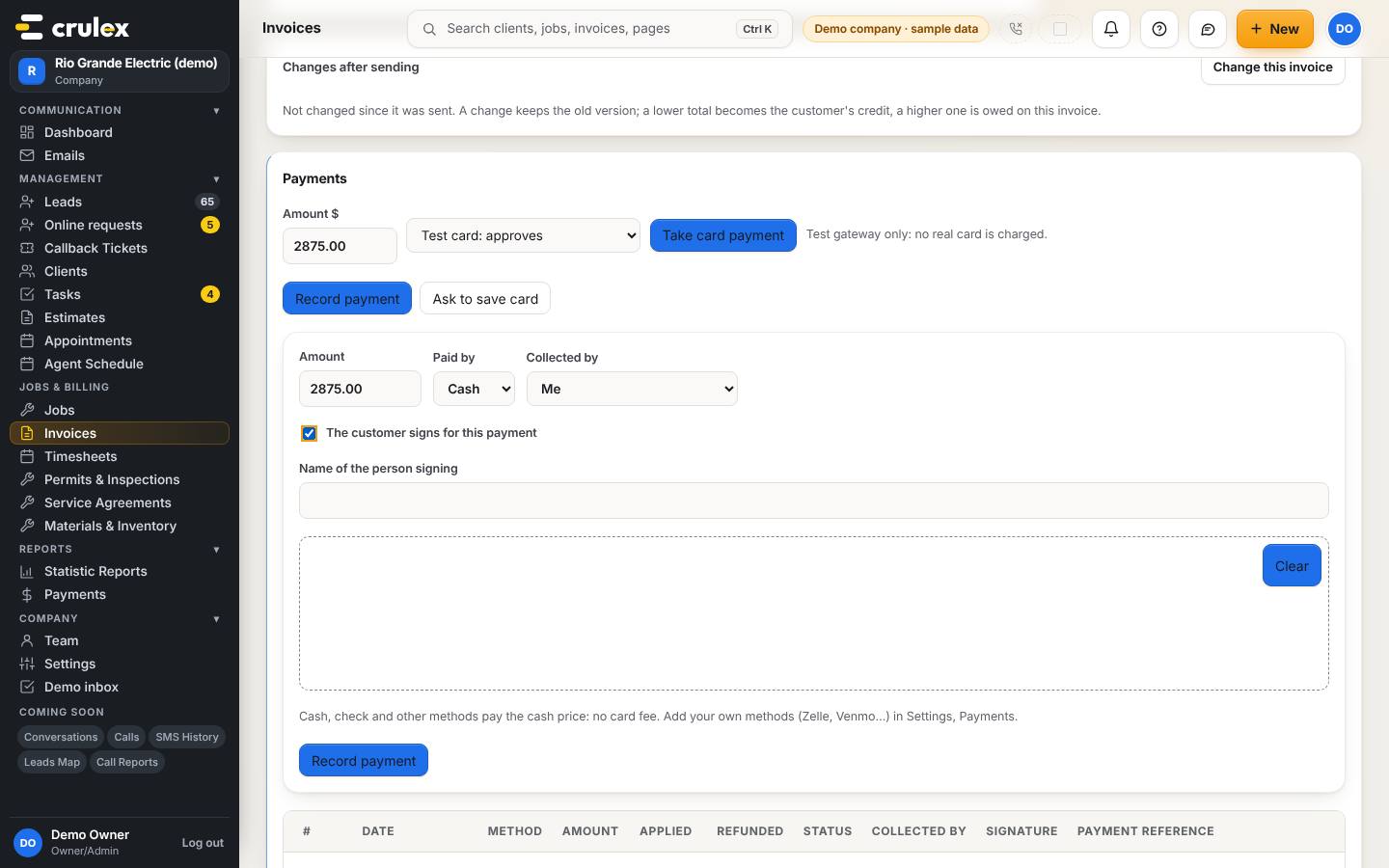
The Record payment form on a part-paid invoice, with amount, cash or check, who collected it and the customer's signature box - To get a card on file, click Ask to save card on an open invoice. The customer is emailed a fresh link with Save card for future use already ticked. Once they pay, Pay with saved card on an invoice charges that card, and the card shows under Cards on file on the customer's Payments tab.
- For a payment with no invoice yet, open the customer, go to the Payments tab, and under Deposits & payment links enter the Amount $ and what it's For, then click Email payment link. Deposits on estimates are taken when the customer approves the estimate.
- To send a statement, open the customer's Statements & credit tab, pick a period (This month, Last month, This year or Pick dates) and click Email this statement. To send one to everyone who owes, click Send statements on the Invoices screen.
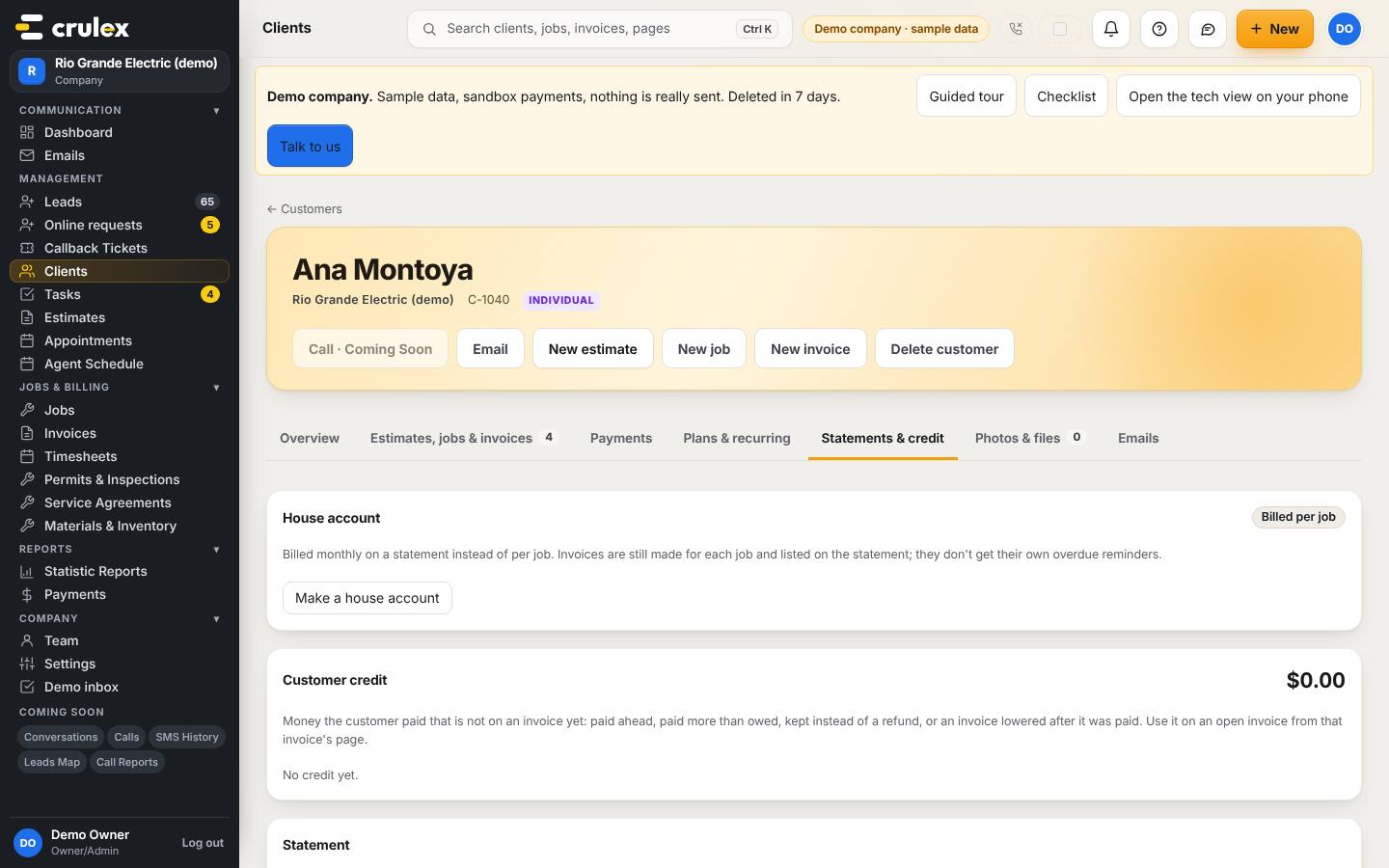
A customer's Statements & credit tab with credit held and this month's statement - To keep money as credit instead of on an invoice, click Keep as credit on the payment's row, enter the amount and confirm. Use that credit on another open invoice from its Customer credit box with Apply credit.
- To see what came in, click Payments under Reports in the menu. Pick Dates, tick a Status or Type, and read the tiles: Received, Refunded, Net received, Card fees, Tips and For the work. Export CSV downloads the list.
On a phone: The filters stack above the tiles; scroll down for the list.
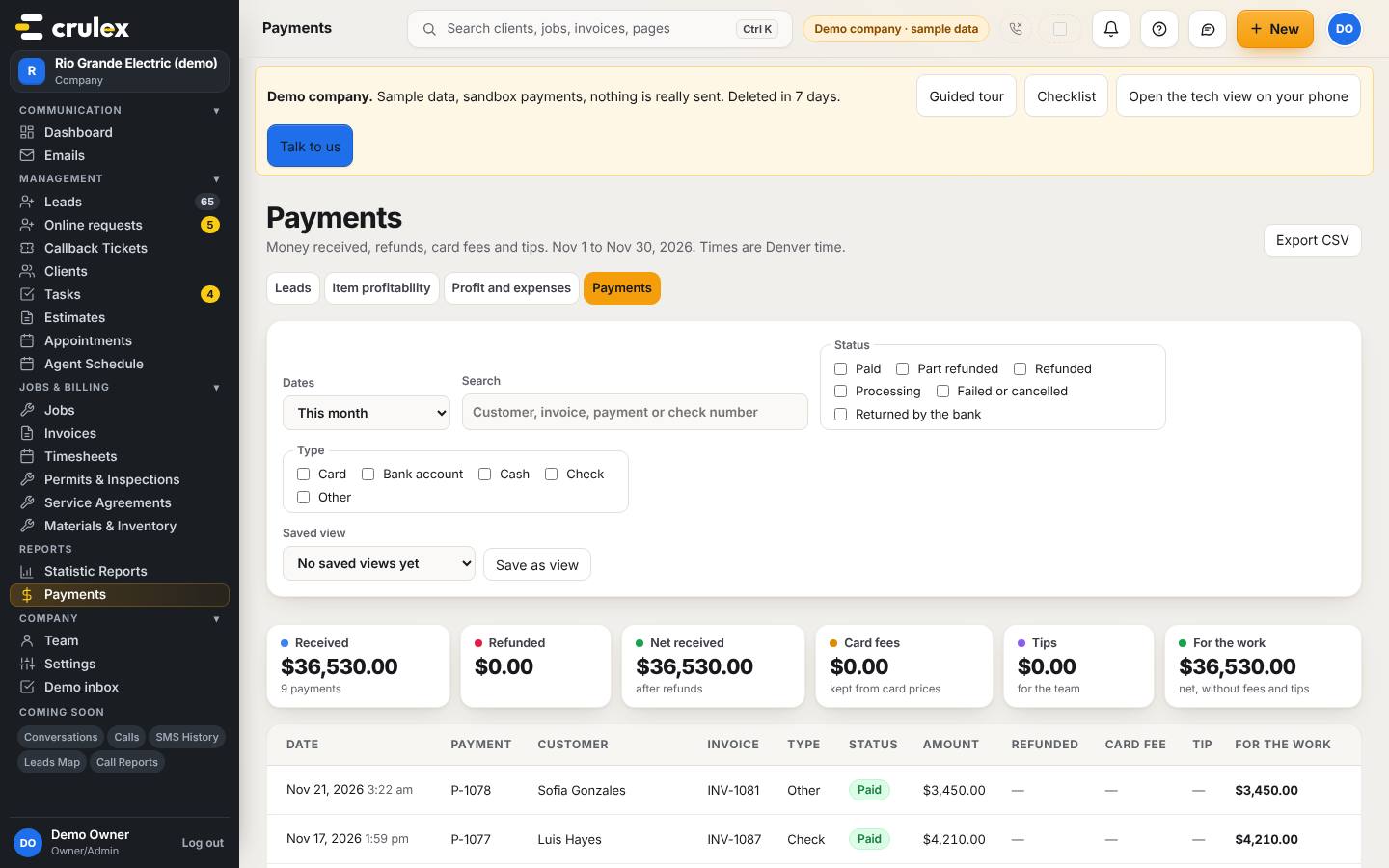
The Payments screen with filters and the Received, Refunded, Card fees, Tips and For the work tiles

How to check it worked
- The invoice's Paid and Balance tiles change, and the payment appears in its Payments list with the method and who collected it.
- A fully paid invoice shows Paid in the Invoices list without you touching its status.
- The payment shows on the Payments screen for its date.
Common mistakes
- Taking card numbers over the phone and writing them down. Never do that: send the invoice link or a payment link, and the customer types the card into the secure form themselves.
- Expecting a card fee on cash or check. Cash, checks and other methods always pay the cash price.
- Using Keep as credit when the customer still owes. The invoice shows that amount owing again, so only use it when the money should sit as credit.
- Sending statements to customers without an email address. Send statements lists who has no email so you can fix them first.