
What it is
The field app is the phone screen your technicians use, at /field on your Crulex address. It opens on My visits: their next visit, today's calendar and the coming week. Tabs along the bottom open Jobs, Time, Updates and Schedule. On a visit they mark On my way and Start work, add notes and photos, fill the job's checklists, get the customer's signature and tap Complete visit. Techs only see visits they are on.
When to use it
- A tech is heading out and needs the address, scope and time.
- On site: logging what was done, taking photos and ticking the checklist.
- At the end of the job: getting the customer to sign and closing the visit.
Before you start
- Available on: the Pro plan, for checklists.
- The tech must be on your Team with the Technician role, and the visit must have them on it.
- Add Crulex to the phone's home screen so it opens like an app (see the guide on installing Crulex).
- Open My visits once while the phone has signal. That saves a copy on the phone, so it keeps working when the signal drops.
- To use a checklist, add it to the job in the office first: open the job, the Checklists & sign-off tab, pick one under Add a checklist and click Add.
Steps
- Open the field app. My visits shows Next visit, Today's calendar, Jobs and Shift, then any new Updates and the visits for today and the next 7 days. Tap a visit to open it.
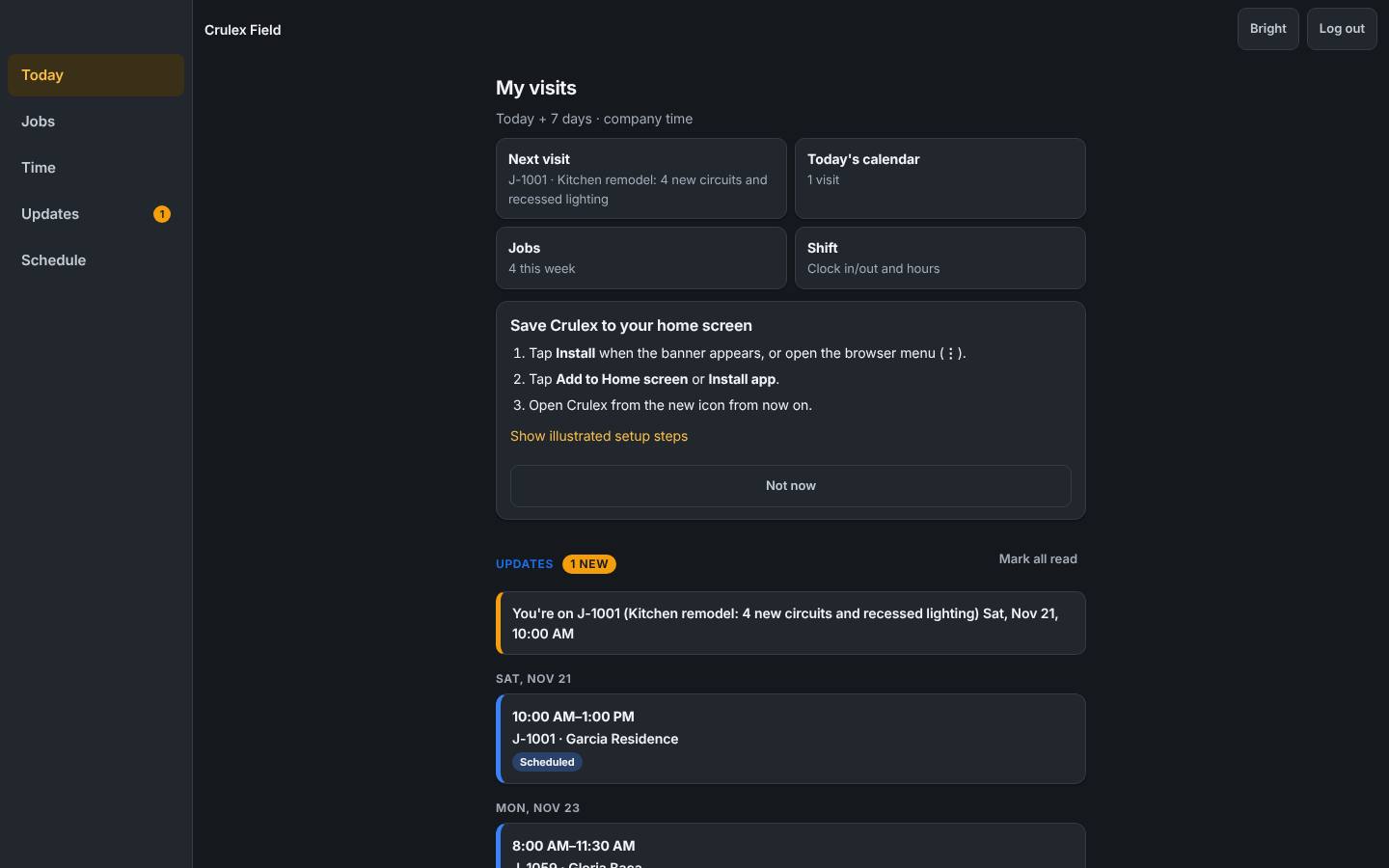
My visits on a phone: next visit, today's calendar, updates and the week's visits - On the visit, check the time, customer, address and Scope. Tap On my way when you leave, then Start work when you arrive. The status shows next to the time.
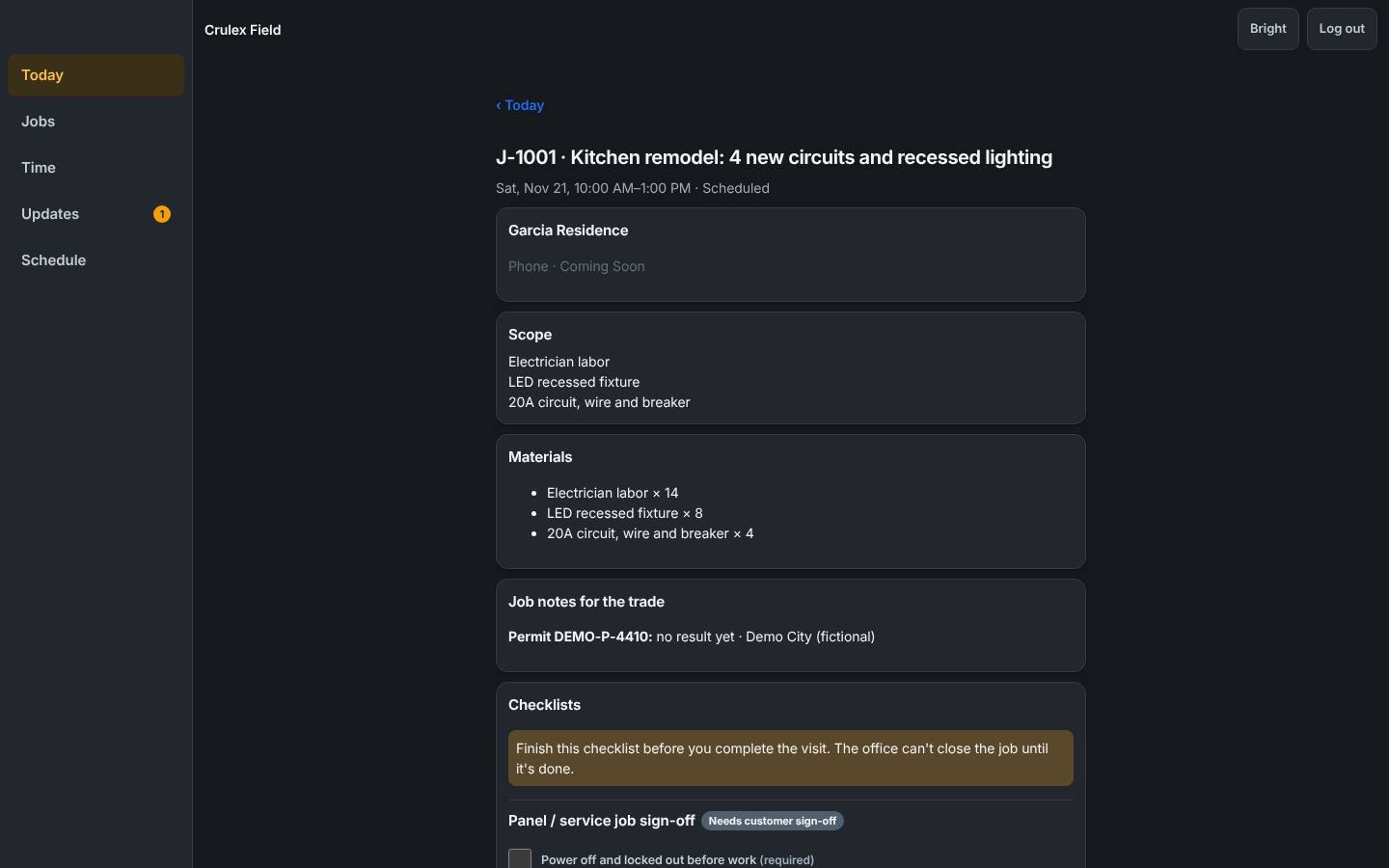
A visit on the field app: the time, customer, scope, materials and job notes - Type in Add a note and tap Save note to log what you found or did. Under Add a photo (JPEG or PNG), take or pick a photo. It says Photo uploaded. when it's in.
- If the job has a checklist, fill it under Checklists: tick each item, pick Pass or Fail, and choose a photo where one is asked for. Still to do lists what is missing. Tap Save answers to keep your place.
- When the required items are done, hand the phone to the customer to sign in the box, type their name under Signed by, and tap Sign and finish (on a job without a sign-off checklist, the box is Customer sign-off and the button Save signature).
- Tap Complete visit. The status changes to Completed and the office sees it straight away.
- To track time on the job itself, tap Clock in to visit under Time on this visit, and clock out there when you leave. Shift time is on the Time tab (see Time clock and commission).
How to check it worked
- The visit shows Completed and says No status changes left for this visit.
- The checklist shows Signed by customer with each answer, and the office sees it on the job's Checklists & sign-off tab.
- Notes and photos show on the job in the office.
Common mistakes
- Opening the field app for the first time with no signal. Open My visits once with signal; after that, changes made offline say Saved on this phone. It will sync when you're back online.
- Trying to finish with checklist items still open. The visit page says Finish this checklist before you complete the visit; check Still to do.
- Picking a photo in the checklist before it has finished uploading. Wait for Photo uploaded., then pick it.
- Tapping the customer's phone number to call. Calling from Crulex shows Coming Soon; use the phone's own dialer.