
What it is
A job is the work you sold: who it's for, the scope, notes and money. Each job has one or more visits, the times someone is on site. Jobs shows every job on a status board (Unscheduled, Scheduled, In progress, Finished). Agent Schedule in the sidebar is your dispatch board: every visit by day, week or month, with a list of jobs still waiting for a time and warnings when a tech is double-booked. Appointments lists the same visits as a table you can filter.
When to use it
- A customer said yes and you need to put the work on the calendar.
- You're planning tomorrow and want to see who is free, who is overloaded and what still has no tech.
- A visit has to move, or a different tech has to take it.
- A finished job needs a return trip because something wasn't right (a callback).
Before you start
- Available on: the Pro plan, for checklists and sign-off.
- The customer must exist first. Add them under Clients, or turn the lead or estimate into a job.
- Set your Business hours in Settings. The schedule shows them, and visits are shown on the company's clock.
- Your techs need to be on the Team to show up in the technician lists.
Steps
- Click Jobs in the sidebar. The Status board shows a column per status with a dollar total. Switch to Schedule or Table with the buttons above the board, or search by job, customer or title.
On a phone: The board scrolls sideways. Table is often easier on a phone.
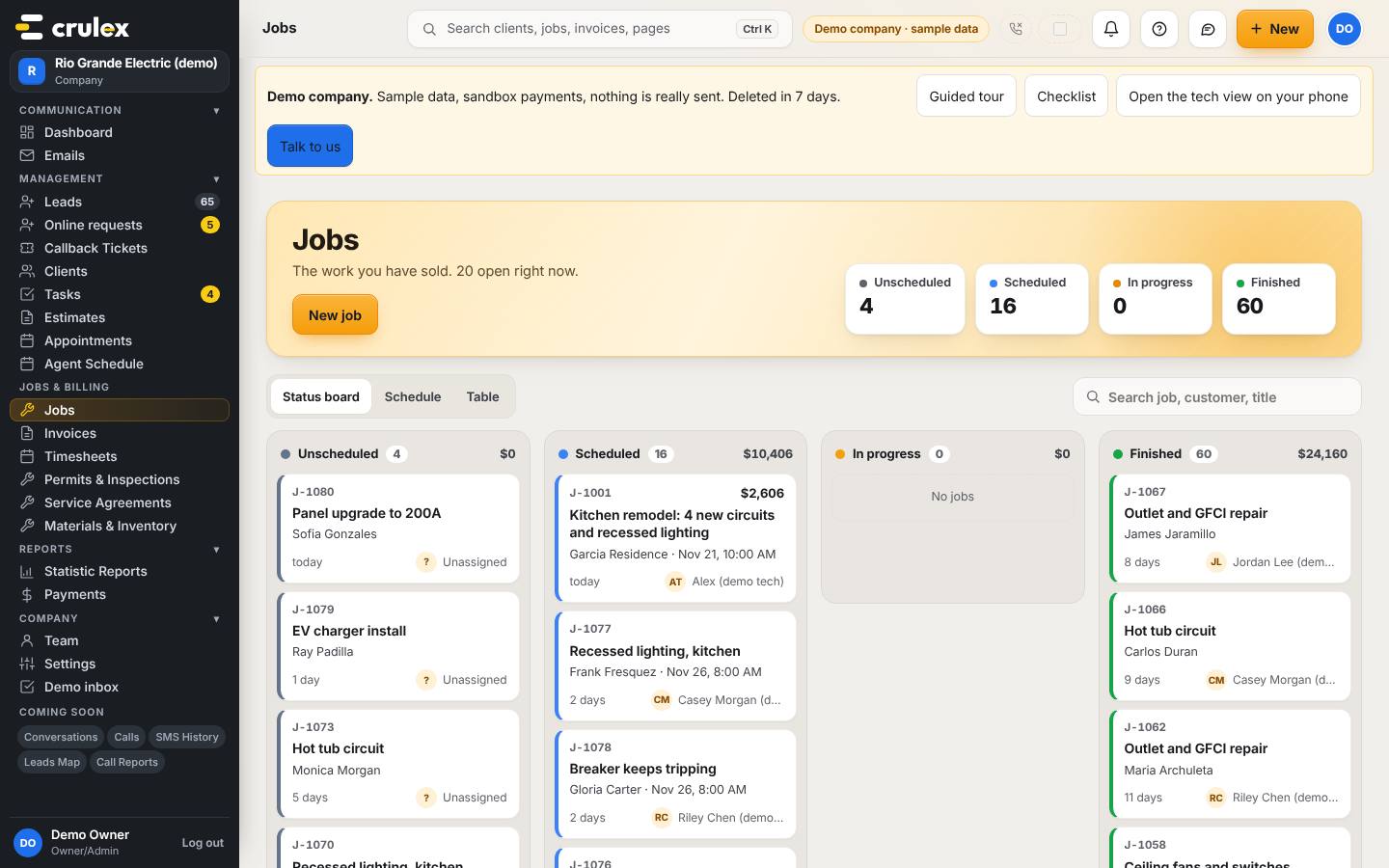
The Jobs status board with Unscheduled, Scheduled, In progress and Finished columns - Click New job. Pick the Customer, type a Job title and Scope of work, add lines if you know them, and fill in Date, Start, Hours and Technician to book the first visit straight away. Click Create job.
- Open a job to see its page. The Work tab holds the title, scope, Notes for the customer, Internal notes (office only) and the Visits card. Other tabs hold Checklists & sign-off, Money, Photos & files, History and Emails.
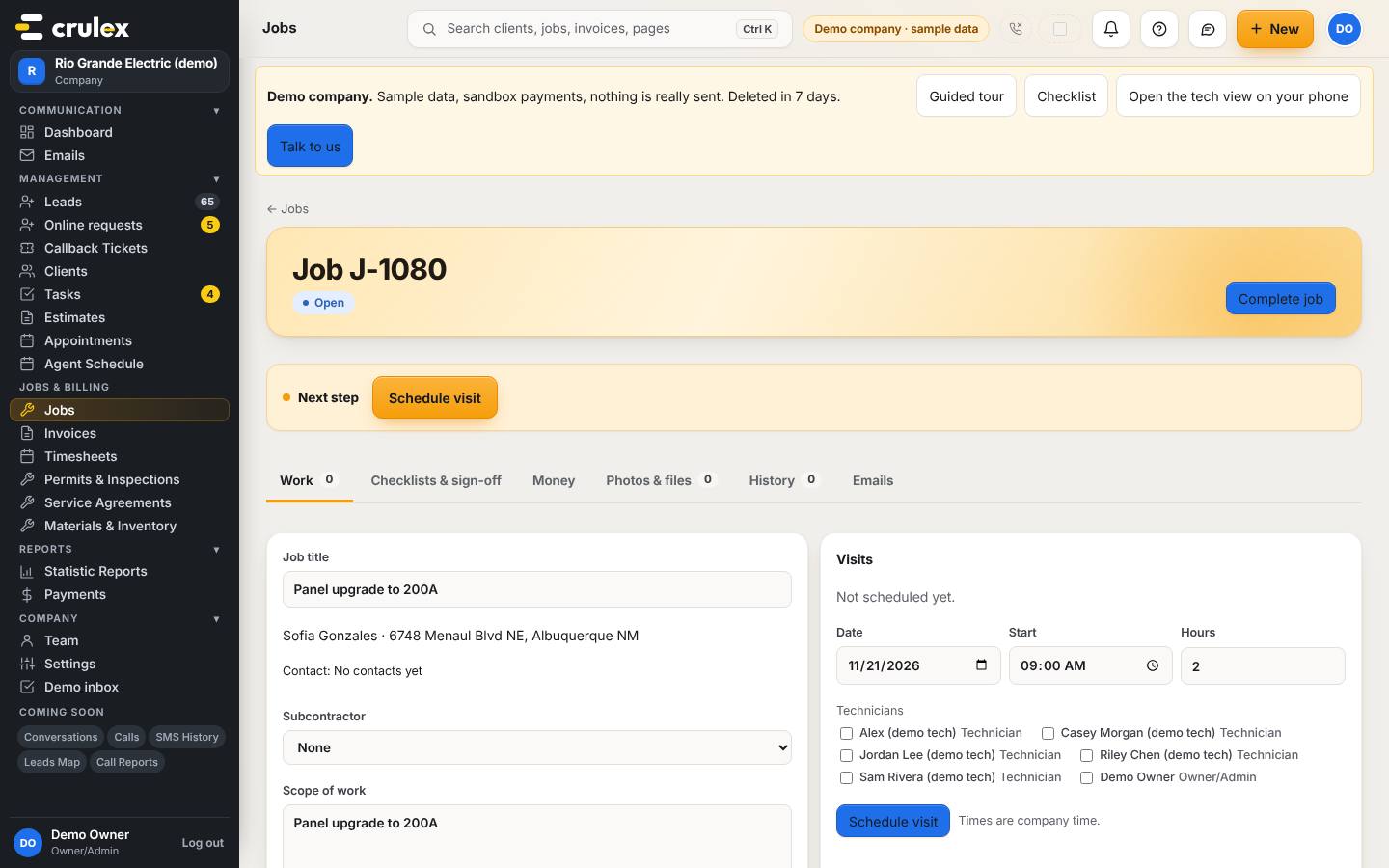
A job page with the Work tab, job details and the Visits card - To book a visit from the job, fill in Date, Start and Hours in the Visits card, tick the technicians, and click Schedule visit. The visit then shows with its time and crew, and the Next step bar moves on.
- Click Agent Schedule in the sidebar. Pick Agenda, Day, Week, Month or Crew, and use ‹, Today and › to move. The tiles at the top count Visits, Needs a tech, Double-booked and Done. Jobs with no time yet wait under Unscheduled jobs: click Schedule on one, pick the date, time and tech, and click Book visit.
- Click any visit on the schedule to open its panel. Move it with −15 min, +15 min, +1 day or +1 week, or type a new Date, Start and Hours and click Save time. Use Add a tech... and Add, or Reassign to hand it to someone else.
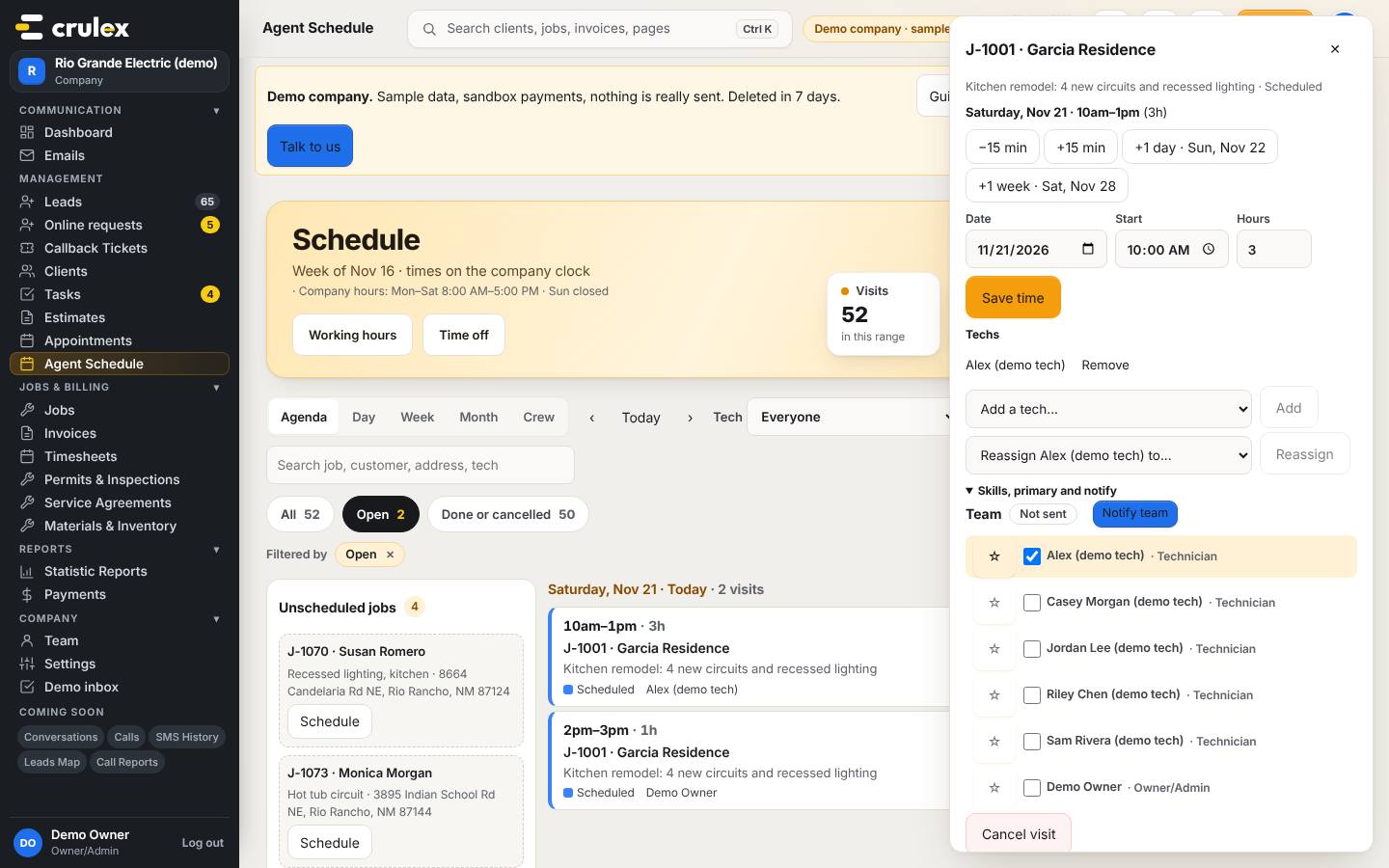
The schedule in Agenda view with a visit's panel open to move, reassign and notify the team - Under Skills, primary and notify, click the star next to the lead tech and click Notify team. Crulex emails everyone on the visit with a link to accept or decline. The pill next to Team shows Not sent, Sent or Reassigned, resend if the time or crew changed after you told them.
- Click Appointments in the sidebar for a list of visits. Pick Today, Next 7 days, Next 30 days, Past 30 days or Custom, filter by status or by who is Assigned, and click a job number to open it.
- When something on a finished job needs fixing, go to Callback Tickets and click Raise a callback. Pick the Finished job, type a Reason, set Priority and Assign to, and click Raise callback. Tickets move from Open to Solved to Done.

How to check it worked
- The job moves from Unscheduled to Scheduled on the Jobs board and shows the visit date and tech.
- The visit appears on Agent Schedule on the right day, and the tech sees it under My visits on the field app.
- After Notify team, the pill on the visit says Sent.
Common mistakes
- Booking two visits for one tech at the same time. The schedule marks both Double-booked in red; open one and move or reassign it.
- Moving a visit after the team was told and not telling them again. The pill turns to Reassigned, resend; click Notify team once more.
- Putting private notes in Notes for the customer. Anything for the office only belongs in Internal notes (office only).
- Expecting the tech to get a text. Crew updates go by email and the field app; texting is coming soon.