
What it is
Techs clock their shift on the field app's Time tab and can clock in to a single visit too. Timesheets in the office shows every person's week, who is Working now, and lets you fix and approve entries. Pay and commission opens the Commission page: pay and commission rates per person, commission worked out from each finished job's profit, and payouts you record and mark settled. Crulex keeps the record; no money moves through Crulex.
When to use it
- Your crew needs to log their hours from the van.
- It's the end of the week and you need to check, fix and approve hours before payroll.
- You pay commission on finished jobs and want a clear record of what's owed and paid.
Before you start
- Available on: the Pro plan, for commission (it is worked out from job costs).
- Seeing everyone's time needs the timesheets permission. Pay rates and commission need the pay permission, which only the owner has unless they give it out.
- Set each person's Pay per hour and Commission on the Rates tab first. The pay rate is copied onto each entry when it starts, so a raise never changes past time.
- Commission on a percent needs the job's profit: the job needs a price (an invoice or approved estimate) and your overhead percent set in Settings (0 is fine).
Steps
- On the phone, the tech opens the Time tab and taps Clock in. Start break (with an optional Break note) and End break handle breaks; Clock out ends the shift. The tab also shows today's and this week's hours. Clocking in and out works with no signal and syncs later; breaks need a signal.
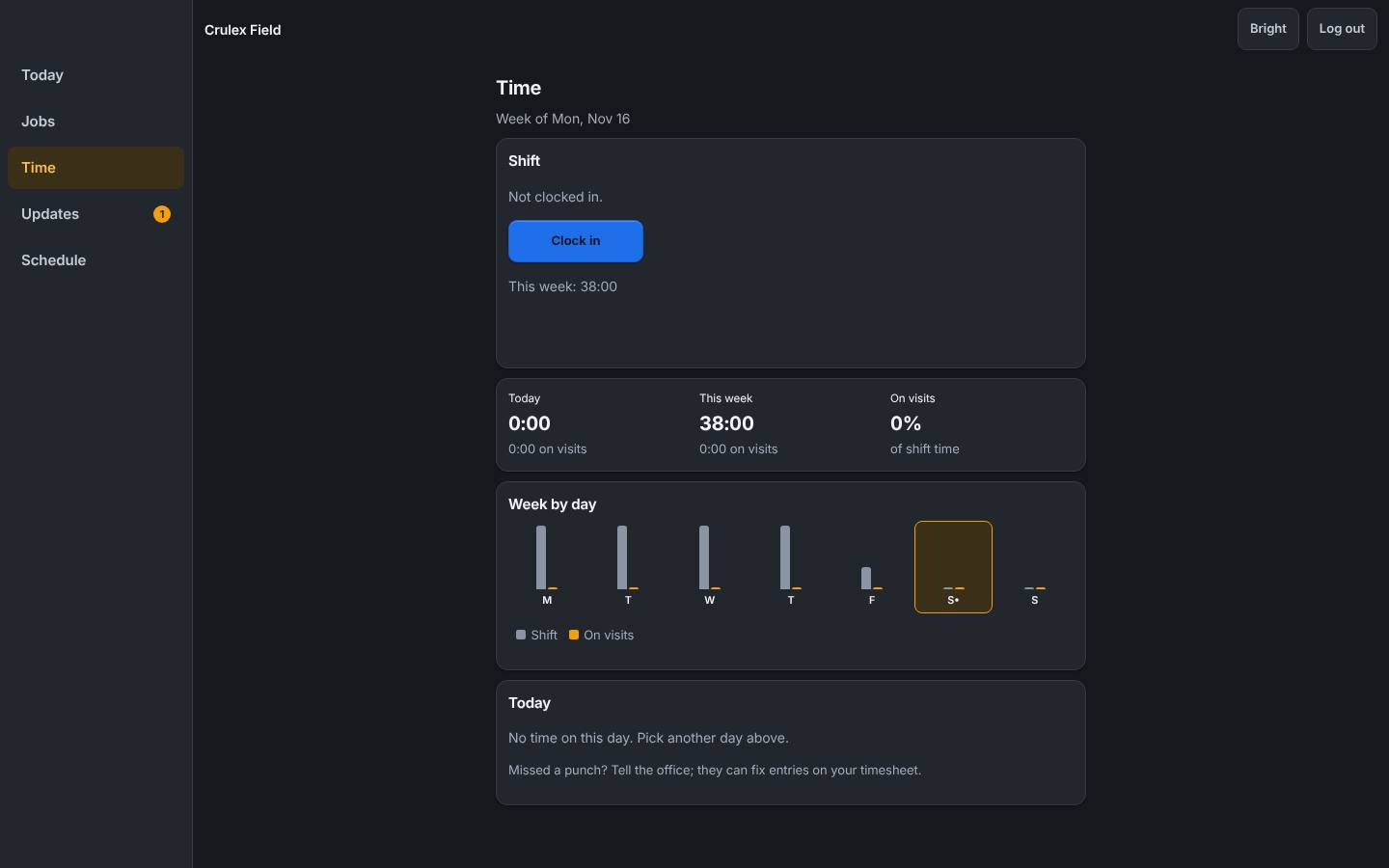
The Time tab on a phone with Clock in, breaks and the week's hours - In the office, click Timesheets. Working now shows who is on a shift or on a break. The table shows each person's Shift and On visits hours by day; use ‹ Prev, This week and Next › to change week.
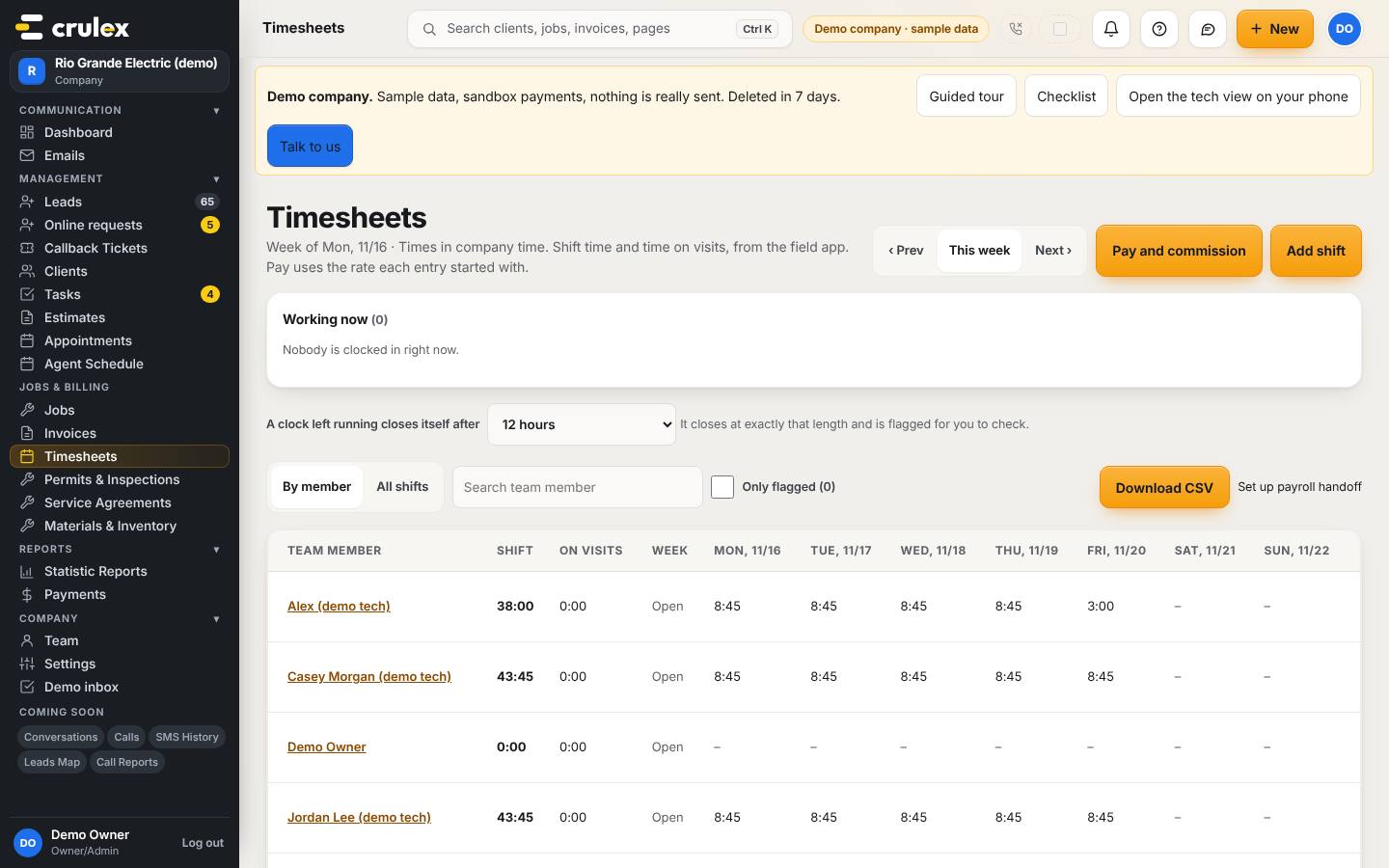
Timesheets with Working now and each person's hours for the week - Click a name to open their week. Click Edit on an entry to fix it, or Add time for a missed shift (a note is required and kept in the history). When the week is right, click Approve week to lock it. Use Download CSV for payroll.
- Choose how long a forgotten clock can run in A clock left running closes itself after. A shift that closed itself is flagged; check it, fix it with Edit if needed, then click Mark checked.
- Click Pay and commission. On the Rates tab, type each person's Pay per hour and Commission percent and click Save.
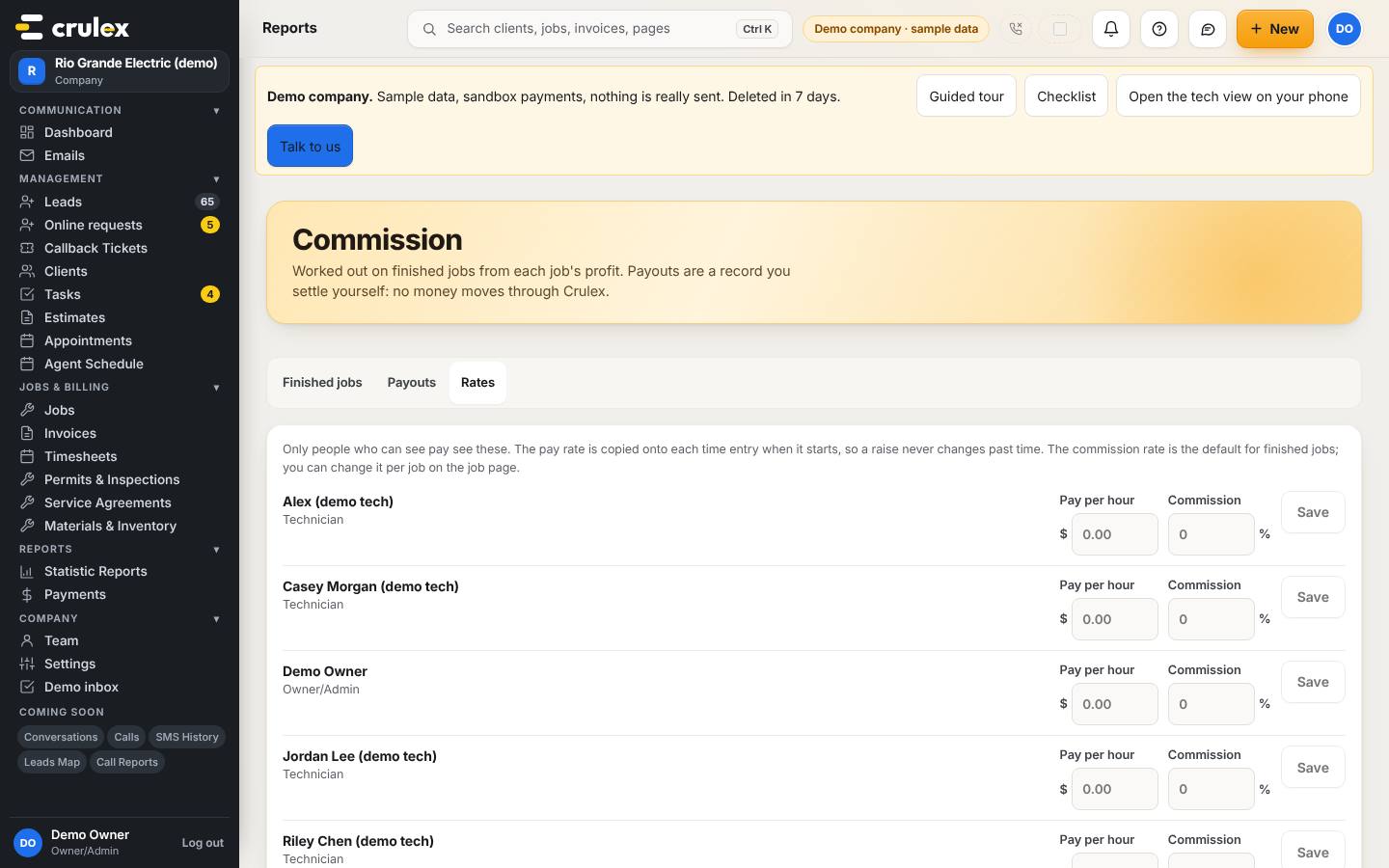
The Commission page, Rates tab, with pay per hour and commission percent for each person - To change commission on one job, open the job, go to the Money tab and use the Commission card: Their rate, Custom percent or Fixed amount, then Save.
- On the Finished jobs tab, each person shows what is ready and what can't be worked out yet (with the reason). Click Record payout, check the jobs, add a note and click Record payout.
- Pay the person the usual way. Then on the Payouts tab click Mark settled, and Email statement to send them a copy. Techs also see their rate and statements on the field app's Time tab.
How to check it worked
- The person shows under Working now while clocked in, and their hours appear in the right day's column.
- After Approve week, the panel says This week is approved and locked.
- A recorded payout shows on Payouts as Not settled, then Settled with the date once you mark it.
Common mistakes
- Forgetting to clock out. The clock closes itself at your limit and is flagged; check and fix it.
- Expecting percent commission on a job with no price or no overhead set. It says profit can't be worked out yet and why; fix that or use a Fixed amount.
- Trying to set your own pay or record your own payout. Someone else who handles pay has to do it.
- Thinking Mark settled pays the person. It only records that you paid them yourself.