
What it is
Crulex runs in your web browser, and you can also add it to your phone's home screen or your computer's dock so it opens in its own window like any other app. It's free, takes a few seconds, and there's nothing to download from an app store. The Install the app page shows the steps for each kind of device, with the device you're on first.
When to use it
- You open Crulex every day and want it one tap away.
- You're setting up a new phone, tablet or computer.
- A technician needs the field app on their phone.
Before you start
- Use the right browser: Safari on an iPhone or iPad, Chrome on Android, and Chrome or Microsoft Edge on Windows, Mac or Chromebook (Safari also works on a Mac).
- Sign in to Crulex in that browser first.
Steps
- Click the circle with your initials at the top right and choose Install the app. You can also find it at the bottom of My account.
On a phone: Tap ☰ at the top left, then Install the app at the bottom of the menu.
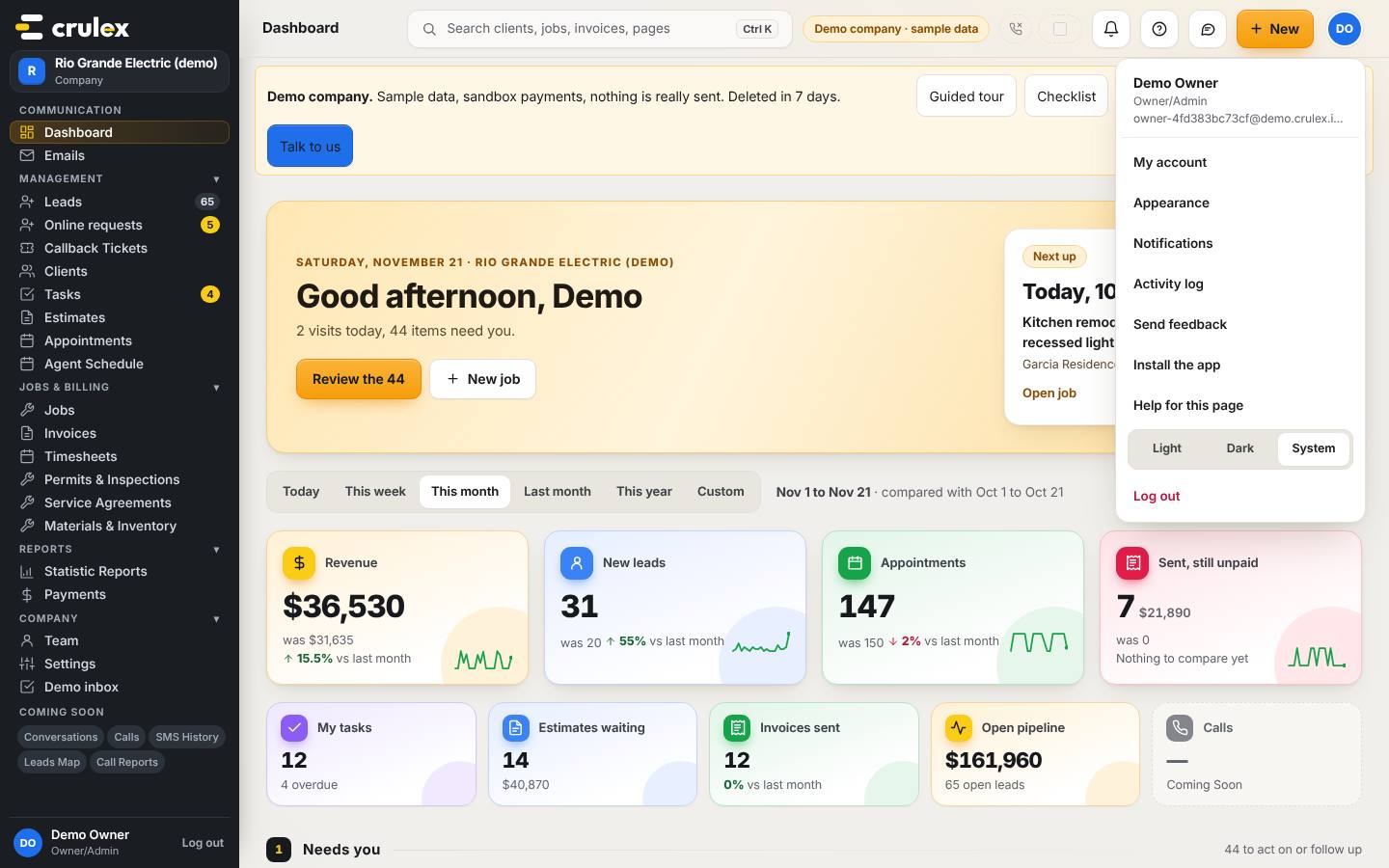
Your menu open from the top bar, with Install the app and Send feedback - The Install the app page shows a box for each kind of device. The one you're on is marked this device and comes first.
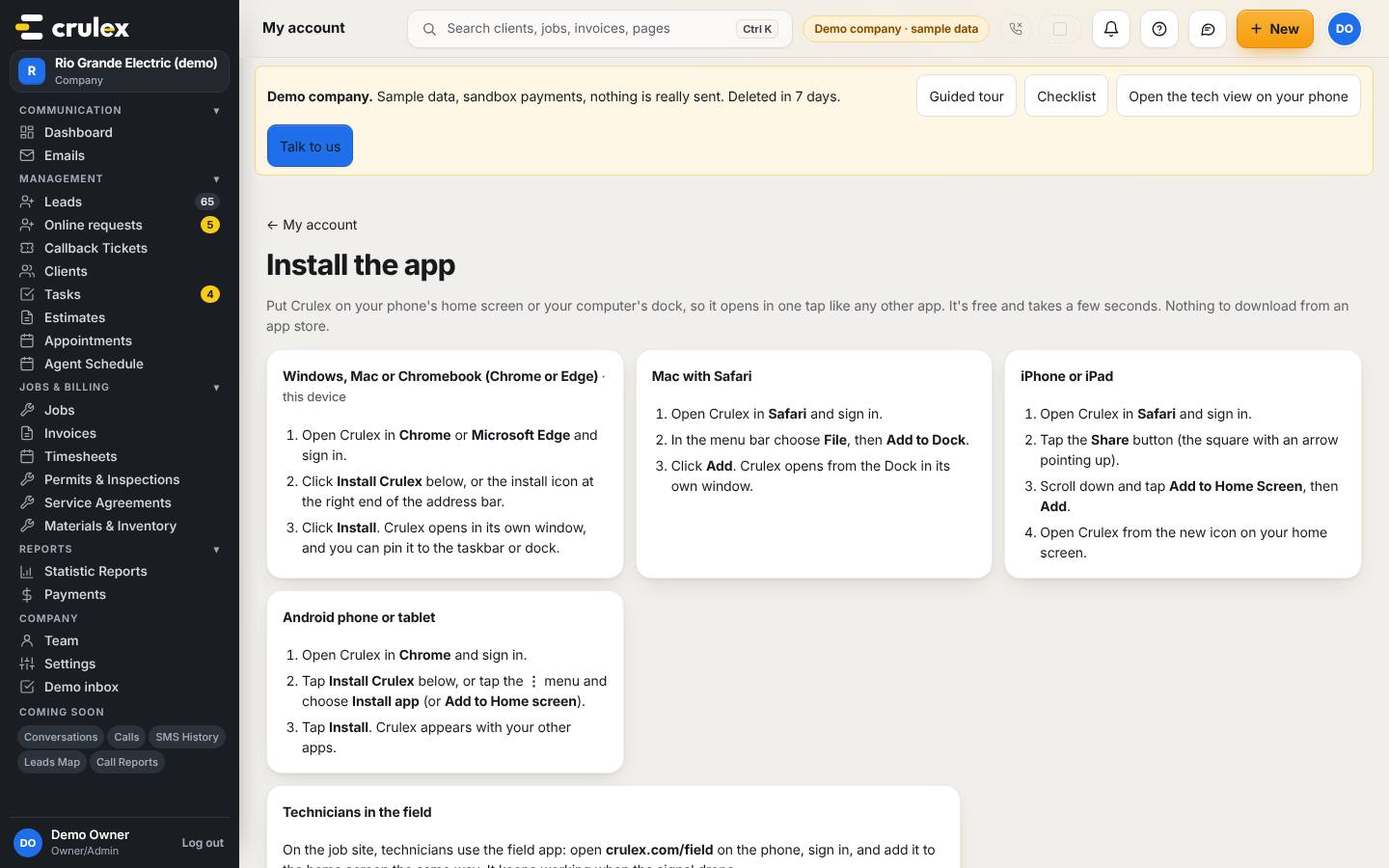
The Install the app page with steps for computers, Mac with Safari, iPhone or iPad, and Android - On a Windows, Mac or Chromebook computer in Chrome or Edge: click Install Crulex on the page if you see it, or the install icon at the right end of the address bar, then click Install.
- On an iPhone or iPad in Safari: tap the Share button (the square with an arrow pointing up), scroll down, tap Add to Home Screen, then Add.
- On an Android phone or tablet in Chrome: tap Install Crulex on the page, or tap the ⋮ menu and choose Install app (or Add to Home screen), then Install.
- On a Mac in Safari: in the menu bar choose File, then Add to Dock, then click Add.
- For technicians: on their phone, open crulex.com/field, sign in, and add it to the home screen the same way.

How to check it worked
- A Crulex icon is on your home screen, dock or taskbar.
- Opening it shows Crulex in its own window, without the browser's address bar.
Common mistakes
- Using the wrong browser. On an iPhone, Add to Home Screen only works from Safari, not from another browser's app.
- Looking for Crulex in the App Store or Google Play. There's nothing to download: you add it from the browser.
- Giving technicians the office address. Technicians use the field app at crulex.com/field.