
What it is
Every new company starts with a 30-day free trial. When you sign in, Crulex opens on the Dashboard: a greeting with what needs you today, your numbers for the period you pick, and today's dispatch. The top bar has search, the New button and your own menu on every screen. The Finish setting up checklist at the top of Settings lists eight things that get your company ready for customers, and ticks each one off by itself once it's done.
When to use it
- You've just signed in to your company for the first time.
- You want to know what's still left to set up before you send estimates and invoices to customers.
- Someone new in the office needs a quick tour of where things are.
Before you start
- Sign in with the email and password you used when you signed up, or the ones from your invitation email.
- The Finish setting up checklist shows to people who can change settings, such as the owner. Other roles don't see it.
- Have your logo, business address and sales tax rate to hand. They go on every estimate and invoice.
Steps
- Sign in. You land on the Dashboard: the greeting shows today's date, how many visits are on today, and how many items need you, with a Review the … button for those items and a New job button. While you're on the free trial, a line at the top says how long is left, for example You're on a free trial until December 20 · 30 days left.
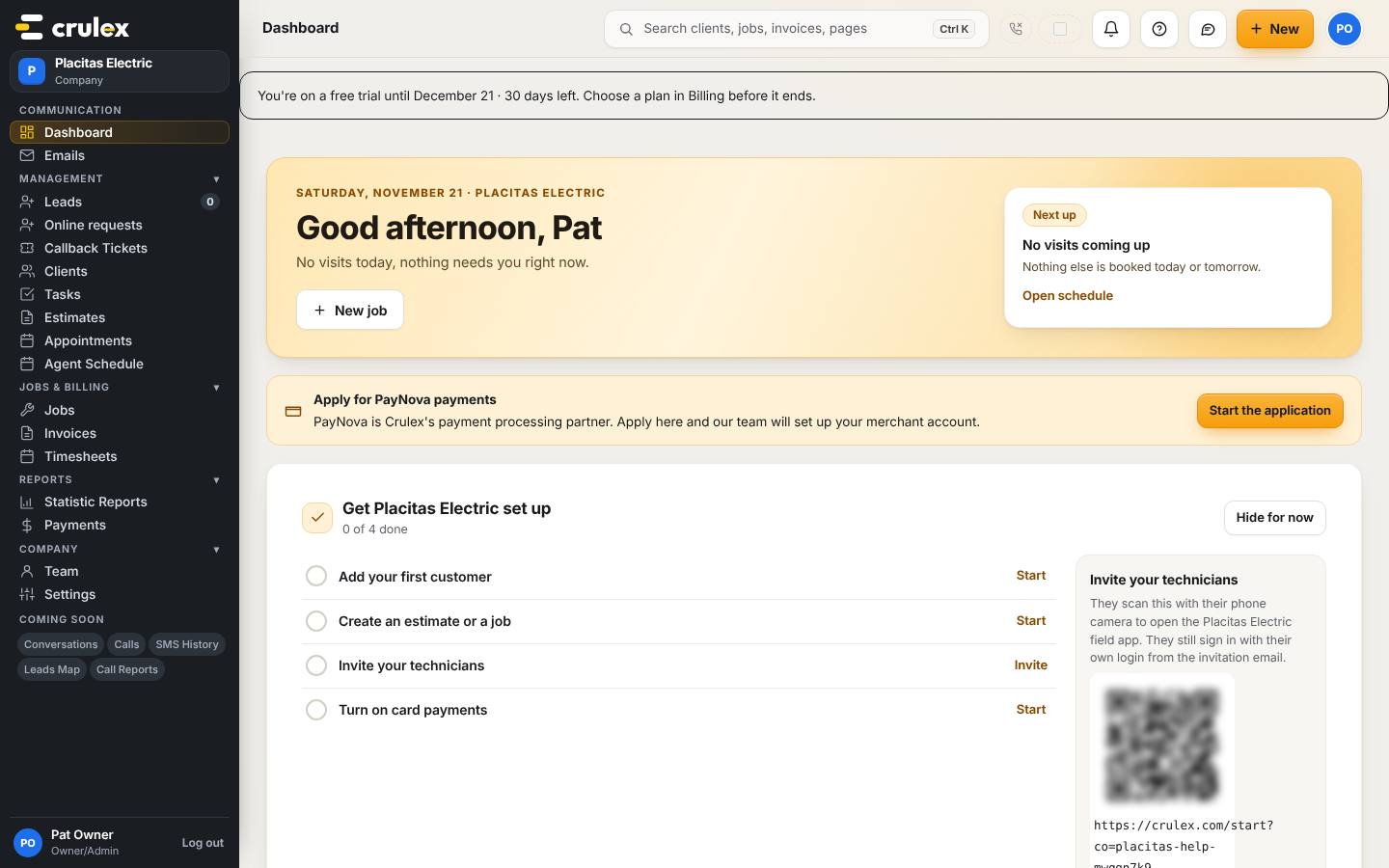
The Dashboard of a new company: the trial line, the greeting and the first-steps list - A new company also sees Get <your company> set up on the dashboard: four first steps (Add your first customer, Create an estimate or a job, Invite your technicians and Turn on card payments), each with a Start or Invite button. The count (for example 0 of 4 done) goes up as you do them. Hide for now tucks the list away.
- Use the buttons under the greeting (Today, This week, This month, Last month, This year, Custom) to change the period for the number boxes: Revenue, New leads, Appointments and the rest. Click a box to open the list behind it.
On a phone: The number boxes sit two across, and the charts fold under a Charts button.
- Get to know the top bar: the search box, the bell for your notices, ? for help on the screen you're on, the speech bubble to send feedback, New to add a lead, customer, estimate, job and more, and the circle with your initials for your own menu.
On a phone: Tap ☰ at the top left for the menu. Send feedback, Install the app and Help for this page are at the bottom of it.
- Click Settings in the sidebar. The Finish setting up box at the top shows how many of the eight steps are done, for example 4 of 8 done.
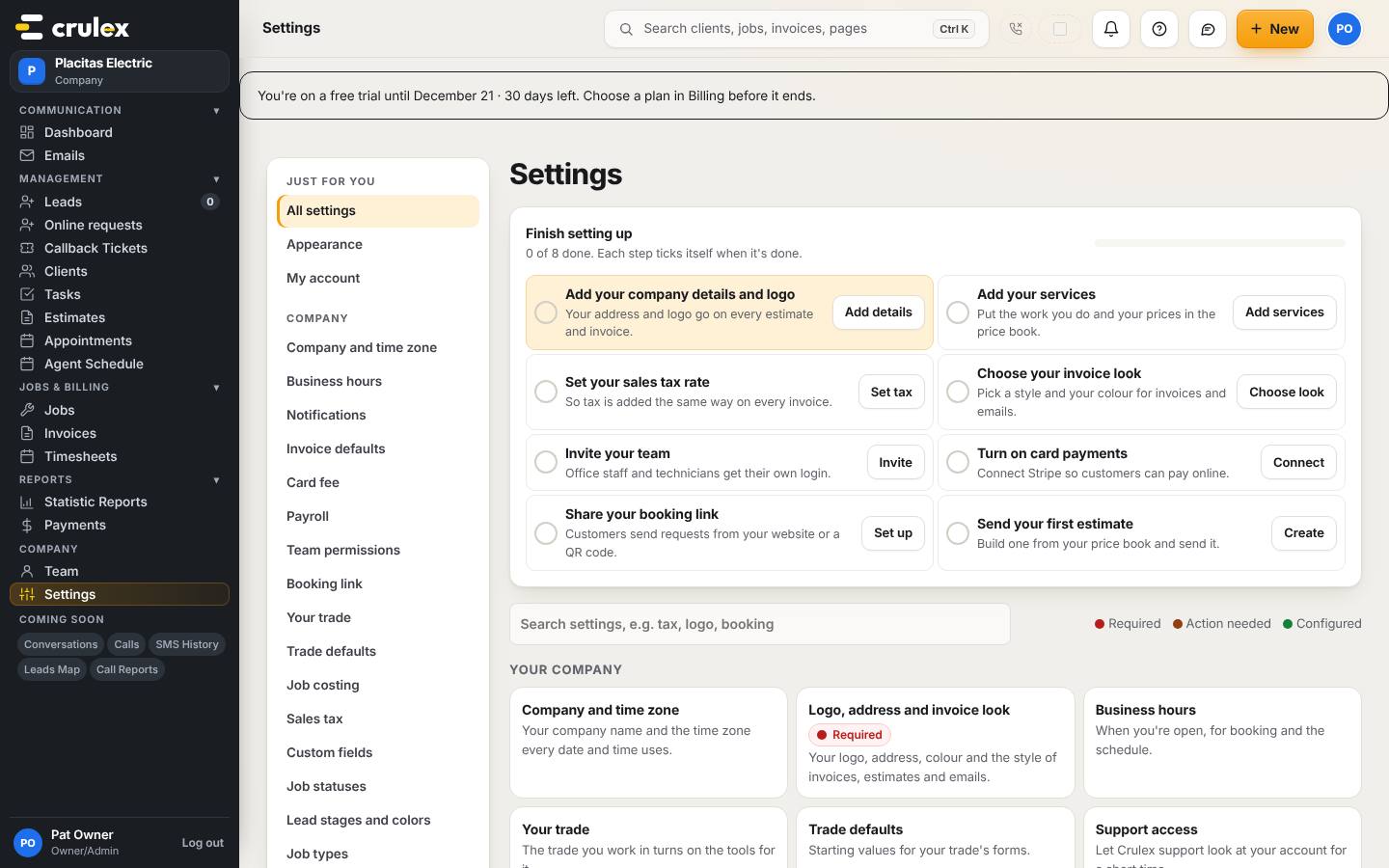
The Finish setting up checklist at the top of Settings, with some steps done - Work down the list. Each step that isn't done has a button that takes you straight to the right screen: Add details, Add services, Set tax, Choose look, Invite, Connect, Set up and Create.
- Come back to Settings after each one. Finished steps get a tick and say Done. When all eight are done, the box goes away.
- Already have customers in another program? Bring them in with Import customers (see the import guide) instead of typing them one by one.
How to check it worked
- On the dashboard, the Get <your company> set up count goes up as you add a customer, create work, invite a technician and turn on card payments.
- The Finish setting up box shows a higher count, and the step you just did has a tick and Done under it.
- Once every step is done, the box no longer shows at the top of Settings.
- Your logo and address show on the next estimate you open.
Common mistakes
- Waiting for a step to tick before it's really done. Steps tick themselves from your real records: for example Send your first estimate only ticks once an estimate has been sent, not just saved.
- Skipping Set your sales tax rate. Without it, tax isn't added the same way on every invoice.
- Wanting a different first screen. Change Default landing tab under My account, Preferences, to open on Leads, Jobs, Schedule or another tab instead of the Dashboard.