
What it is
A recurring invoice makes itself on a schedule (every few weeks or months) for one customer: as a draft for you to check, sent automatically, or sent and charged to a card the customer saved. A service plan is an offer you sell to many customers, like a maintenance club: a price, how often it's billed and how many visits a year it includes. Each customer joins a plan at one of their addresses, and Crulex bills it and counts the visits. Both live on Recurring & plans, a tab next to Invoices.
When to use it
- You clean, service or inspect for a customer on a fixed schedule and bill the same each time.
- You sell a yearly or monthly maintenance plan with a set number of visits.
- You want to see what bills are coming up this month.
Before you start
- Only the office can see this screen; you need to be able to see invoices and prices.
- Automatic card charges need a card the customer saved themselves (by ticking Save card for future use when paying online) and their agreement to be charged automatically.
- To add a customer to a plan, the customer needs an address: a plan belongs to one address.
Steps
- Click Invoices in the menu, then the Recurring & plans tab. Switch between Recurring invoices, Calendar and Service plans.
- Click New recurring invoice. Choose the customer, give it a Name (for example "Monthly pool service"), and fill in What each invoice charges (Item, Qty, Price; Add a line for more).
On a phone: The form fills the screen, with Save recurring invoice pinned at the bottom.
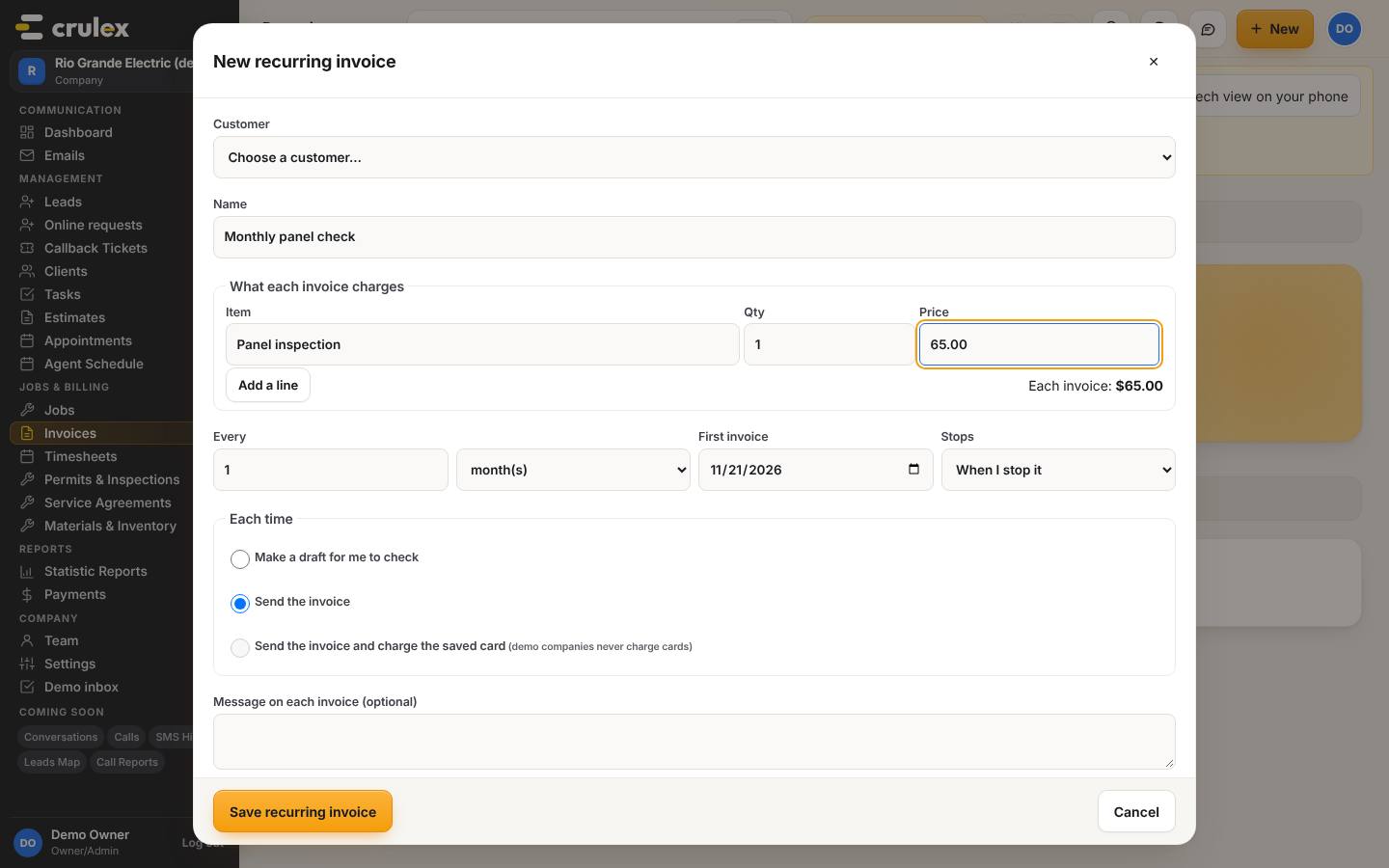
The New recurring invoice form with lines, how often, when it stops and what happens each time - Set how often (Every so many week(s) or month(s)), the First invoice date, and when it Stops: When I stop it, On a date, or After a number of invoices.
- Under Each time, pick Make a draft for me to check, Send the invoice, or Send the invoice and charge the saved card. For charging, choose the card and tick The customer agreed to be charged automatically on this card, with how they agreed. Read the plain-words summary, then click Save recurring invoice.
- Open a recurring invoice from the list to see Next invoices and Invoices made, and to Pause, Resume or Stop it.
- For a plan, open Service plans and click New service plan. Fill in Plan name, Price, Billed every, Visits a year, Charge sales tax on the plan and What's included (optional), check the summary, then click Save plan.
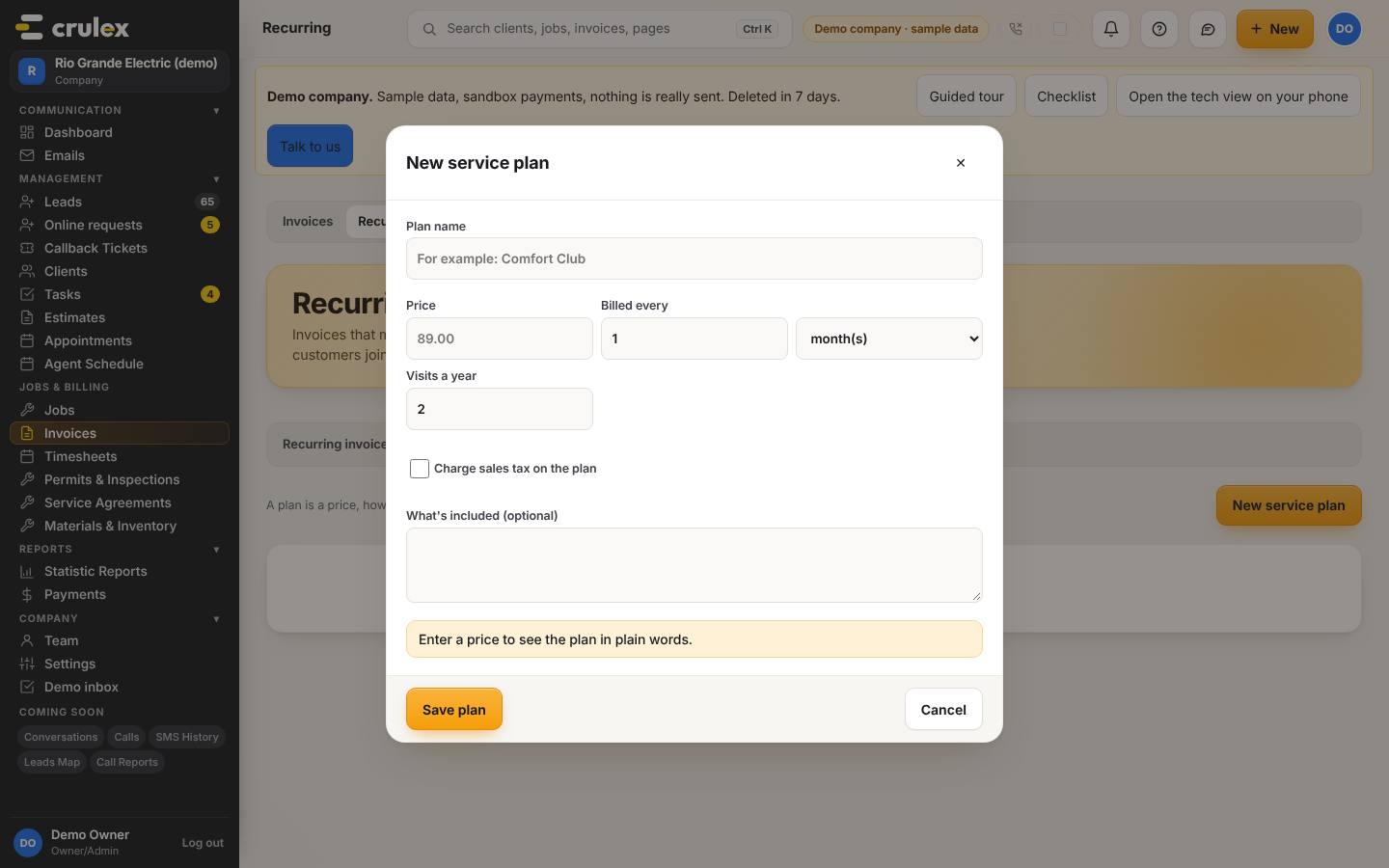
The New service plan form with price, billing and visits a year - To sign a customer up, open the customer, go to the Plans & recurring tab and click Add to a plan. Pick the Plan, the Address and the First bill date, then click Add to plan.
- After a plan visit, click Count a visit on the customer's plan and pick the visit. The bar shows how many visits are used this plan year. Cancel plan stops its billing.

How to check it worked
- The recurring invoice shows Active in the list with its Next invoice date and amount.
- The Calendar shows the upcoming bills on their dates.
- On the customer's Plans & recurring tab, the plan shows its next bill and the visits used.
Common mistakes
- Trying to change a plan's price after customers joined. A plan with members is Locked; use Duplicate to a new plan to offer new terms.
- Expecting automatic charges on a card the office typed in. Only a card the customer saved themselves can be charged automatically.
- Mixing this up with the Service Agreements page in the menu. That page is a simple list of contracts with a next-due date and doesn't bill; use service plans to bill.
- Forgetting a declined card. A declined automatic charge isn't retried: you get a bell notice, and the invoice stays open for the customer to pay.