
What it is
An invoice is the bill for your work. Finishing a job makes its draft invoice for you, or you can start one from the Invoices screen. You check the draft, then send it: the customer gets an email with a PDF and a link to their own invoice page, where they can see every line, download the PDF and pay online. Once sent, an invoice is locked so the customer always sees what you sent; changes go through Change this invoice, which keeps the old version. Invoice branding in Settings sets your logo, colours, wording and email messages.
When to use it
- A job is finished and its draft invoice is waiting for you to check and send.
- You need to bill a customer for something that wasn't a scheduled job, like a quick part sale.
- A customer asks you to resend an invoice, or for a PDF copy.
- You want your invoices and emails to carry your logo, colour and your own words.
Before you start
- The customer needs to be in Crulex with an email address, or the invoice can't be emailed. Add the customer first if they're new.
- Set your default payment terms (for example Net 30) under Settings, Invoice defaults, so new invoices get a due date for you.
Steps
- Click Invoices in the menu. The tiles at the top show Total invoiced, Collected, Outstanding and Overdue; click a tile or a chip like Draft or Partly paid to filter the list.
- To start one by hand, click New invoice. Pick the customer in Find a customer or Customer, set the Due date, fill in each line (Item, Type, Qty, Unit price ($)), use Add line for more, then click Create draft invoice.
On a phone: The form fills the screen, with Create draft invoice pinned at the bottom.
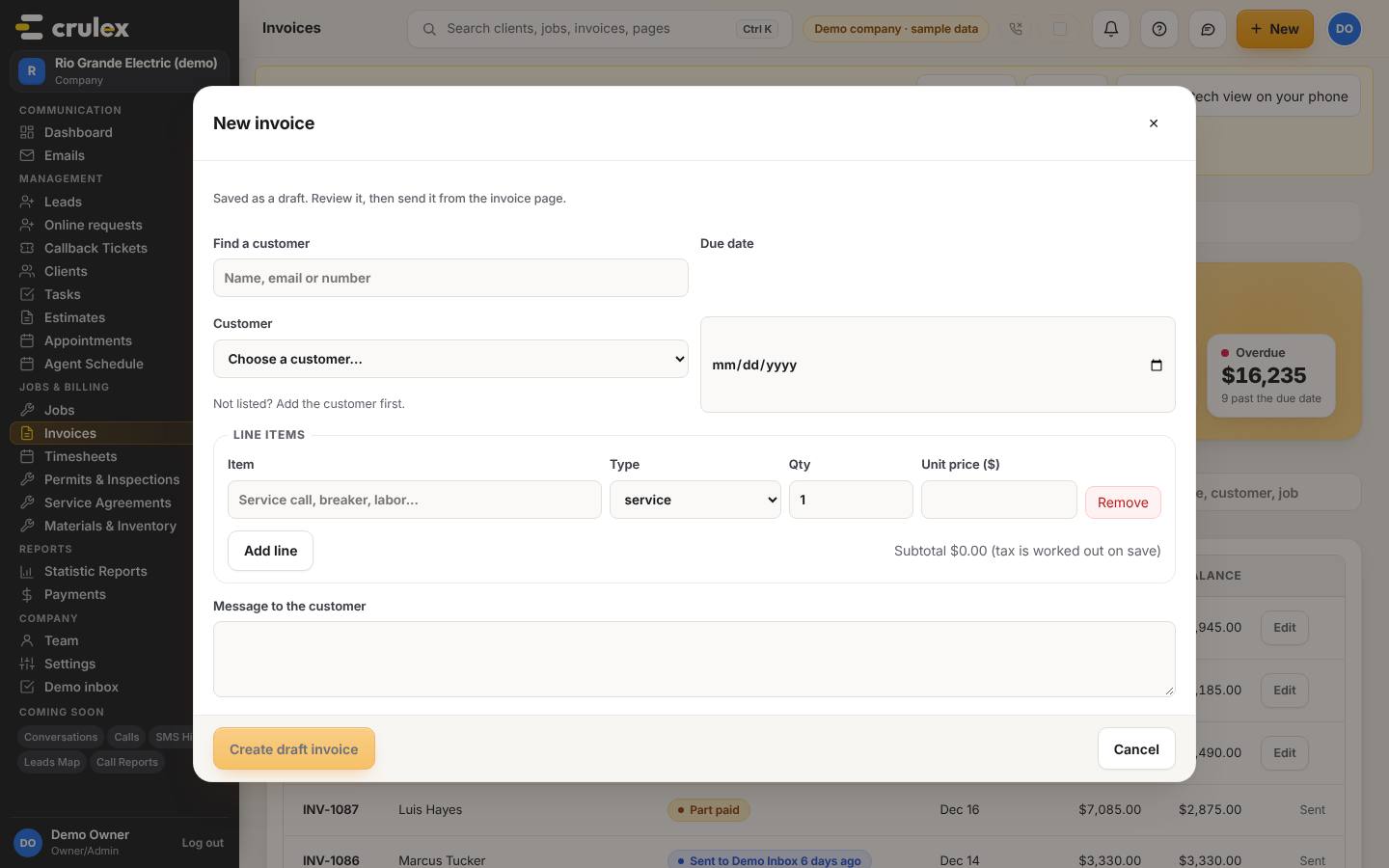
The New invoice form with customer, due date and line items - On the draft, check the lines. Use Remove to drop a line, or type in Add a line and click Add. Under Details, fill in the Service date and PO number if the customer needs them.
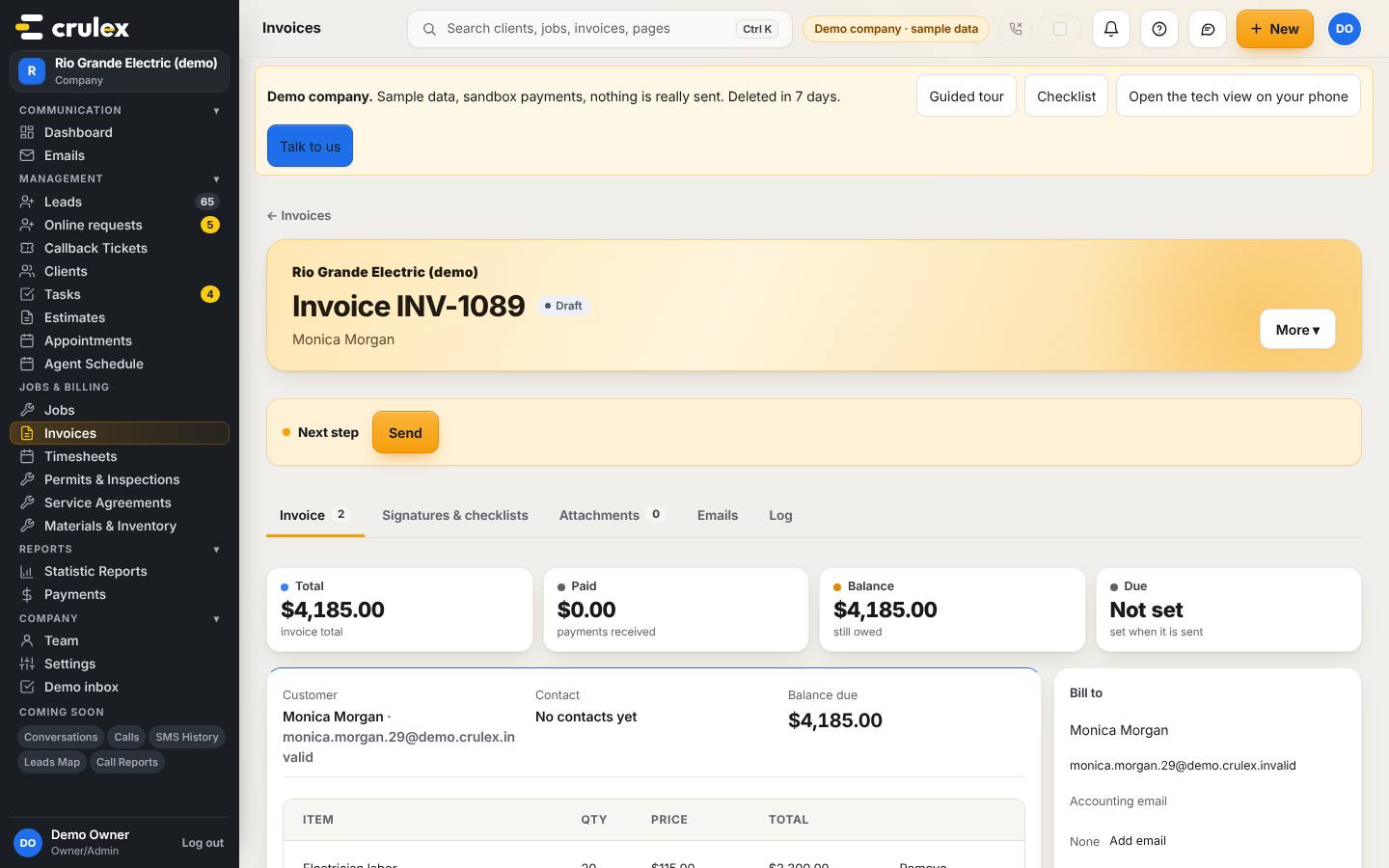
A draft invoice with its lines, totals, details and the Approve and send button - Write anything the customer should read in Customer notes (printed on the invoice). Notes for your team go in Private notes and never show on the invoice.
- Click Approve and send (or Send in the Next step bar). The customer is emailed the invoice with its PDF and link, and the invoice is locked.
- To see what the customer sees, click Open link (preview) in the Share box. Show link and QR code gives you a link to copy or a QR code the customer can scan on the spot.
- Use More ▾ at the top to Resend invoice, Duplicate, Copy link, Download PDF or Void. To fix a sent invoice, click Change this invoice under Changes after sending and give a reason the customer will see.
- To set your look, go to Settings, Invoice branding. Choose a style under Invoice look (Classic, Modern or Compact), fill in Words on your invoices and Email wording, check the Live preview, then click Save branding. Send me a test emails you a sample.
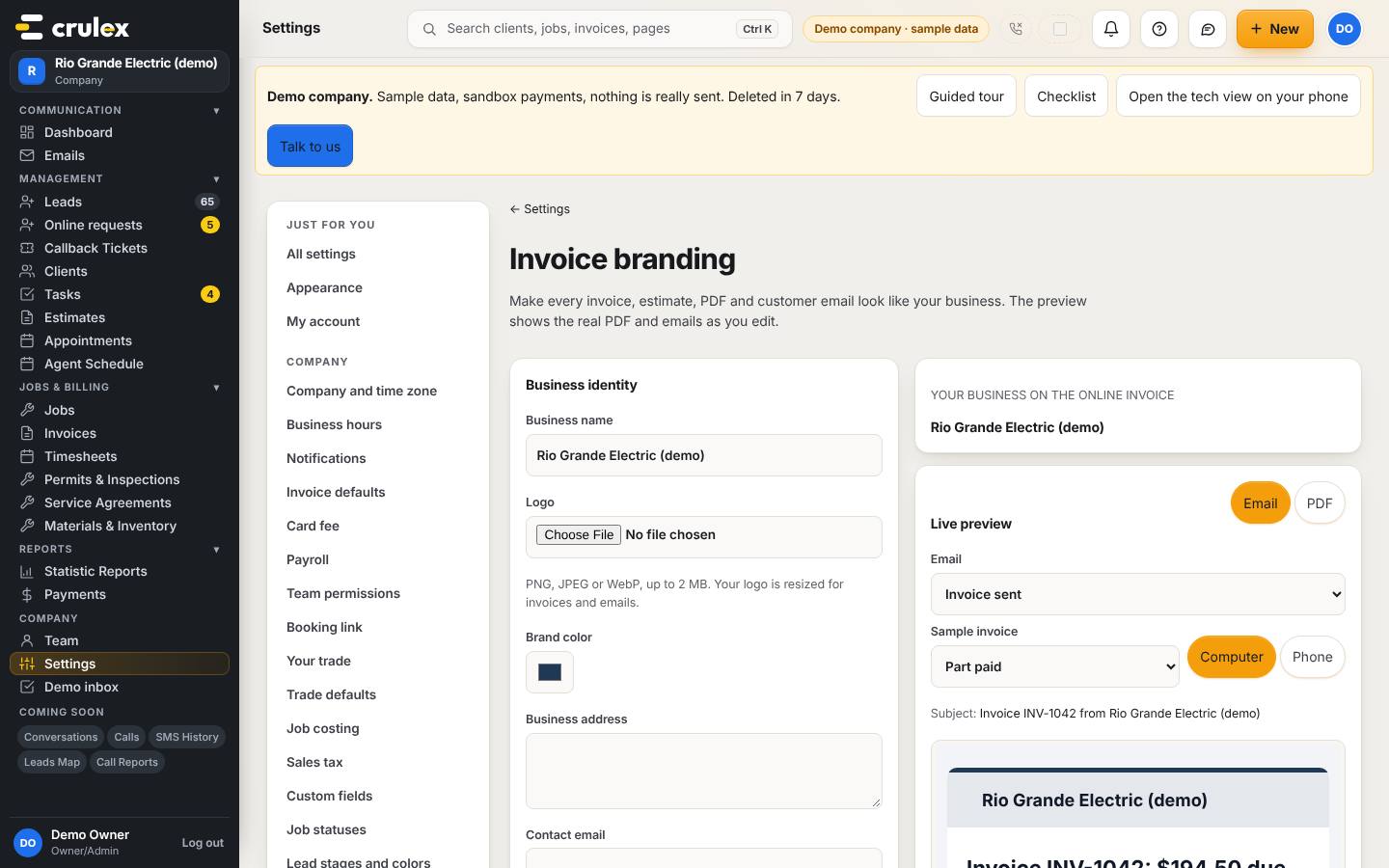
Invoice branding settings with the invoice look choices and a live preview

How to check it worked
- The invoice's status pill changes from Draft to sent, and its Emails tab lists the email.
- The Share box says when the customer opened the link (it shows Not opened by the customer yet until they do).
- Download PDF shows your logo, colour and the wording you saved in Invoice branding.
Common mistakes
- Trying to edit a sent invoice's lines. Sent invoices are locked: use Change this invoice (a lower total becomes the customer's credit, a higher one is owed on the same invoice), or void it and invoice again.
- Looking for a way to mark an invoice Paid by hand. Status comes from payments: record the payment and the invoice updates itself.
- Putting team-only notes in Customer notes. Those print on the invoice; use Private notes instead.
- Forgetting the customer's bookkeeper. Add an Accounting email under Bill to and that address gets its own copy of every invoice email.