
What it is
Subcontractors are outside companies you hand leads or jobs to. You keep them in Settings under Subcontractors, with a contact, email, Commission %, skills and notes. You can store their insurance and licence papers with expiry dates and get a warning before they run out. On a job you can give the whole job, or just one section of it with its own pay, to a subcontractor. Each subcontractor can get a private no-login page showing only their own jobs, schedule and what they're owed.
When to use it
- You hand part of a job (a trench, drywall patching, haul-away) to another company.
- You need to know before a sub's insurance or licence runs out.
- A sub keeps asking what's booked for them and what they're owed.
Before you start
- Available on: the Pro plan.
- Managing subcontractors needs permission to change settings, which the owner has.
- Seeing or setting section pay needs permission to see prices.
- Have their insurance and licence files ready (a scan or PDF) if you want expiry warnings.
Steps
- Go to Settings and click Subcontractors in the settings menu. The list shows each company with its contact and email.
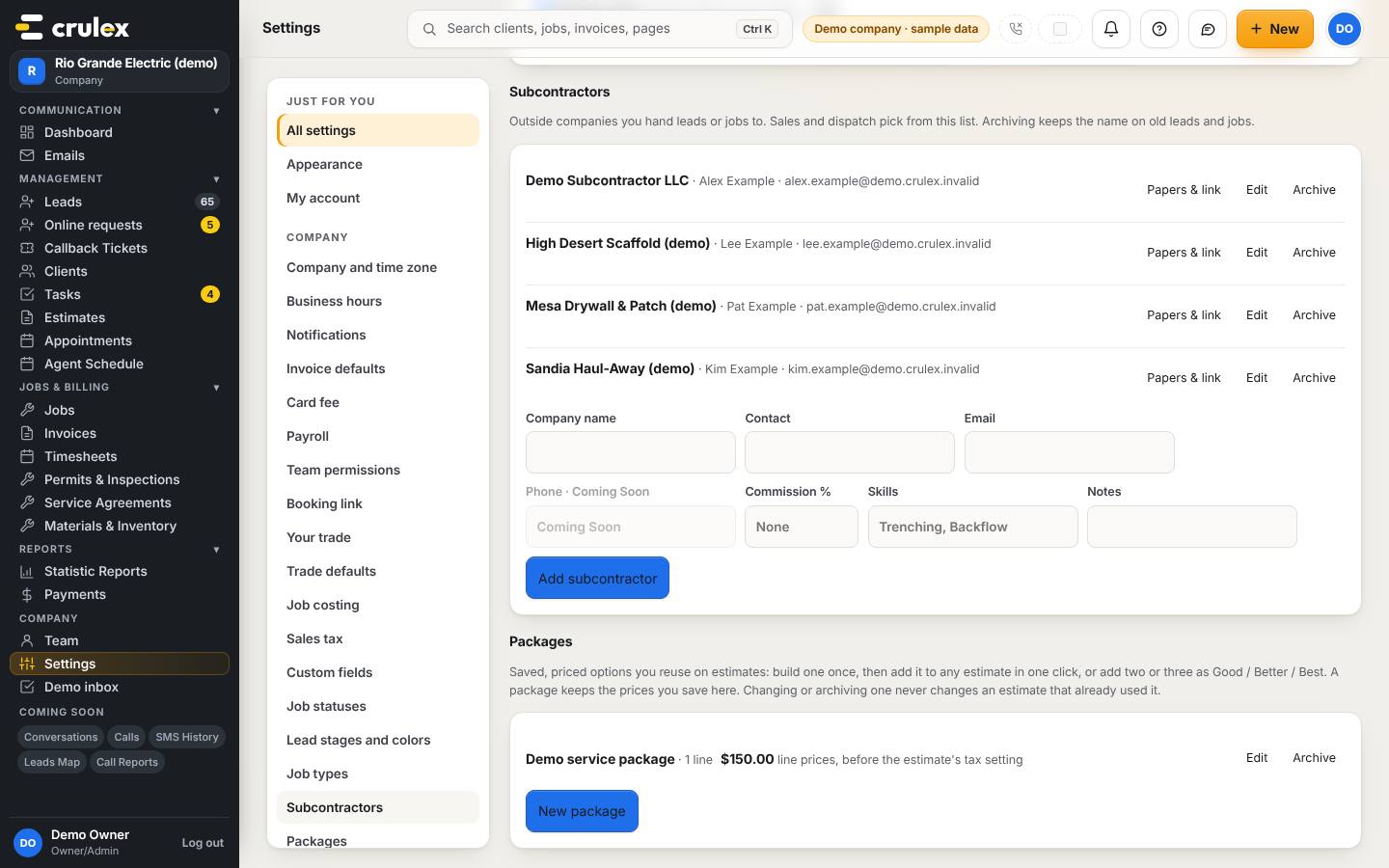
Settings, Subcontractors: the list of subcontractors and the form to add one - To add one, fill in Company name, Contact, Email, Commission %, Skills and Notes, and click Add subcontractor. Use Edit to change one later, or Archive when you stop working with them (old jobs keep the name).
- Click Papers & link on a subcontractor. Under Insurance and licence, pick the Type, give it a Name, set Expires, choose the File and click Add paper. Crulex alerts you 30 days, 7 days and on the day it expires.
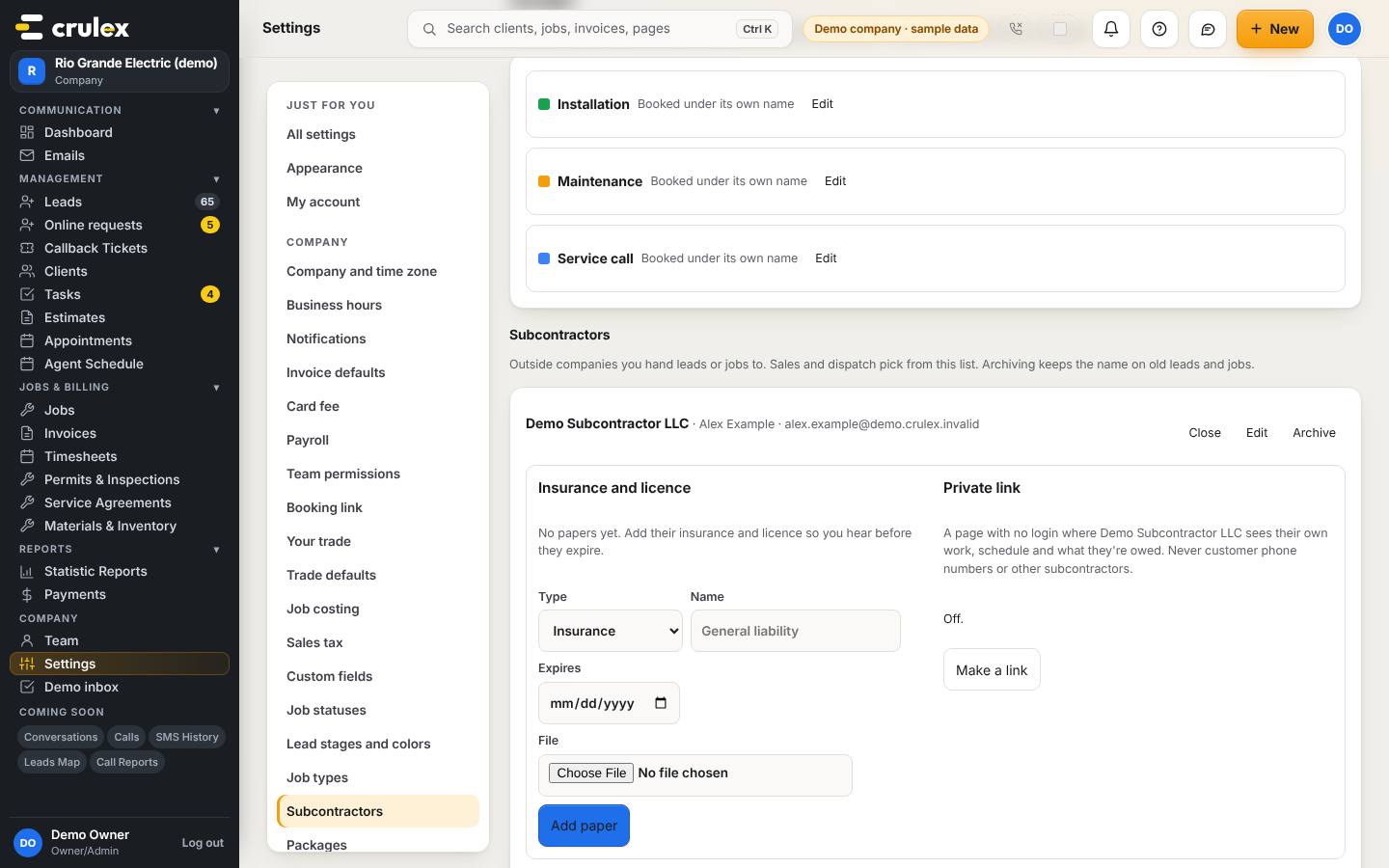
A subcontractor's insurance and licence papers and private link - Under Private link, click Make a link, then Copy and send it to them yourself. The link is shown only once. Make a new link replaces it (the old one stops working), and Switch off turns it off.
- To give them a whole job, open the job and pick them in the Subcontractor box on the Work tab.
- To give them part of a job, use the Work-order sections card on the job: type the Section, pick them in Who does it, enter their Pay and Details, and click Add section. Click Mark done when that part is finished.
How to check it worked
- The subcontractor shows in the list and in the Subcontractor and Who does it boxes on jobs.
- Each paper shows how long until it expires, for example "Expires in 9 days".
- Opening the private link shows What you're owed, Your schedule and Your jobs for that company only.
Common mistakes
- Losing the private link. It's shown only once; click Make a new link and send the new one.
- Expecting the sub to see customer phone numbers or other subs' work. Their page shows the customer's name and job address only, and only their own work.
- Thinking Crulex pays the sub. What you're owed is a record; you settle with them directly.
- Typing a phone number for the sub. The phone box shows Coming Soon; use email for now.