
What it is
Tasks opens the Follow-ups page: call-backs and to-dos tied to a customer or a lead. Each one has a due date and time on your company's clock, a priority, an optional email reminder, one or more people and notes. The number next to Tasks in the sidebar is how many are overdue.
When to use it
- You promised to call someone back on a set day.
- Something has to happen later for a customer or lead (send a revised estimate, book a warranty visit, ask for a review).
- You want to clear out old follow-ups in one go.
Before you start
- The customer or lead must already be in Crulex. In the new follow-up form, Add them as a customer first takes you there if not.
- Reminders go by email, so each person needs an email address on their account.
Steps
- Click Tasks in the sidebar. Switch between Mine and Everyone, and use the chips (Open, Overdue, Due in 24h, Later, No due date) to filter. Tick Show done to see finished ones.
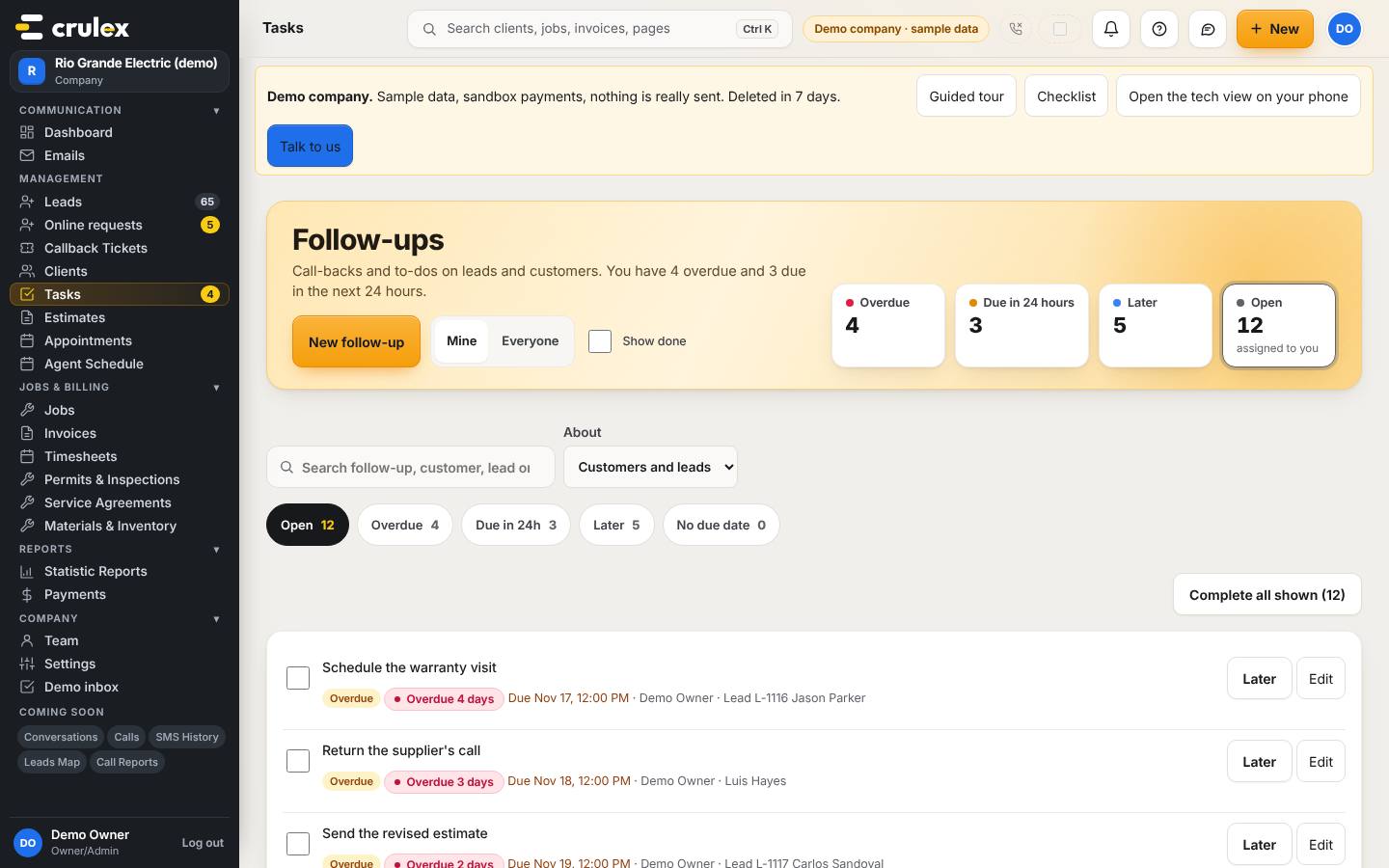
The Follow-ups page with overdue and due counts and the list of open follow-ups - Click New follow-up. Choose Customer or Lead, then pick who it's about.
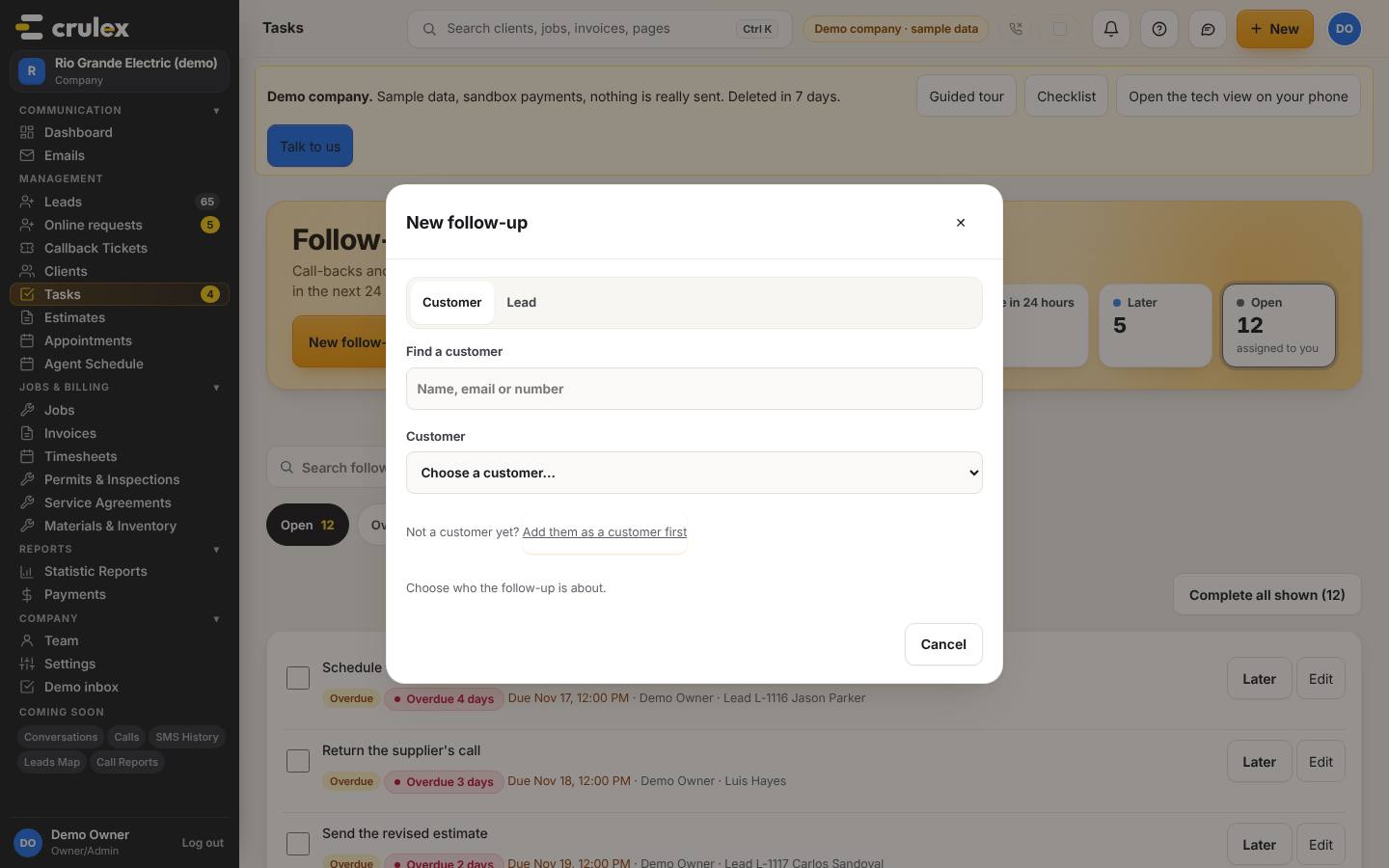
The New follow-up form - Type what needs doing under Follow-up, set the Due date and Time, pick a Reminder (for example 1 hour before) and a Priority (Low, Normal, High, Urgent).
- Under Assign to, tick everyone who should see it, add Notes if needed, and click Add follow-up (or Save and add another).
- To push one back, click Later on its row and pick Tomorrow, 9 AM, Next week, Monday 9 AM or Next month, the 1st at 9 AM. Each choice shows the day it lands on.
- Tick the box at the start of a row when it's done. To finish everything in the current list, click Complete all shown, check the list in the box that opens, and click Mark 12 done (the number matches your list).

How to check it worked
- The new follow-up shows in the list with its priority, due time and everyone assigned.
- The tiles at the top (Overdue, Due in 24 hours, Later, Open) and the sidebar number change to match.
- Each person gets a reminder email at the time you chose.
Common mistakes
- Using Complete all shown with the wrong filter on. It marks exactly the follow-ups in the list you're looking at, and the box lists them first; read it before you click.
- Leaving Mine on and wondering where a colleague's task went. Click Everyone.
- Expecting a text or phone pop-up reminder. Reminders are email only for now.