
What it is
Leads holds everyone who asked about work, from the first contact until they say yes or no. Each lead sits in a stage (New, Contacted, Estimate sent, Won, Lost) on a board or in a list, with who it's assigned to and an estimated value. Your booking link is a web page where customers send a request. Each request shows up under Online requests and as a new lead. Nothing is booked until you approve it.
When to use it
- Someone emails, calls or stops you on a job asking for a price, and you don't want to lose track of them.
- You want to see at a glance who still needs a call back and who has gone quiet.
- You want customers to send requests from your website or a QR code instead of phoning.
- A request came in from your booking link and you need to book it, ask a question or turn it down.
Before you start
- Available on: the Team and Pro plans, for the Lead report.
- You need permission to see leads. Setting up the booking link needs permission to change booking settings, which the owner has.
- Set your Business hours in Settings first if customers will pick a time. Open times come from those hours, minus visits already booked.
- Calling and texting aren't set up in Crulex yet, so the phone box shows Coming Soon. Email is how Crulex reaches the customer for now.
Steps
- Click Leads in the sidebar. The board shows a column per stage with a dollar total at the top. Use the chips (Open, Stale, Unassigned, Booked online, Won, Lost, All) to filter, or click List for a table you can sort, filter and export.
On a phone: The board scrolls sideways. List is often easier on a phone.
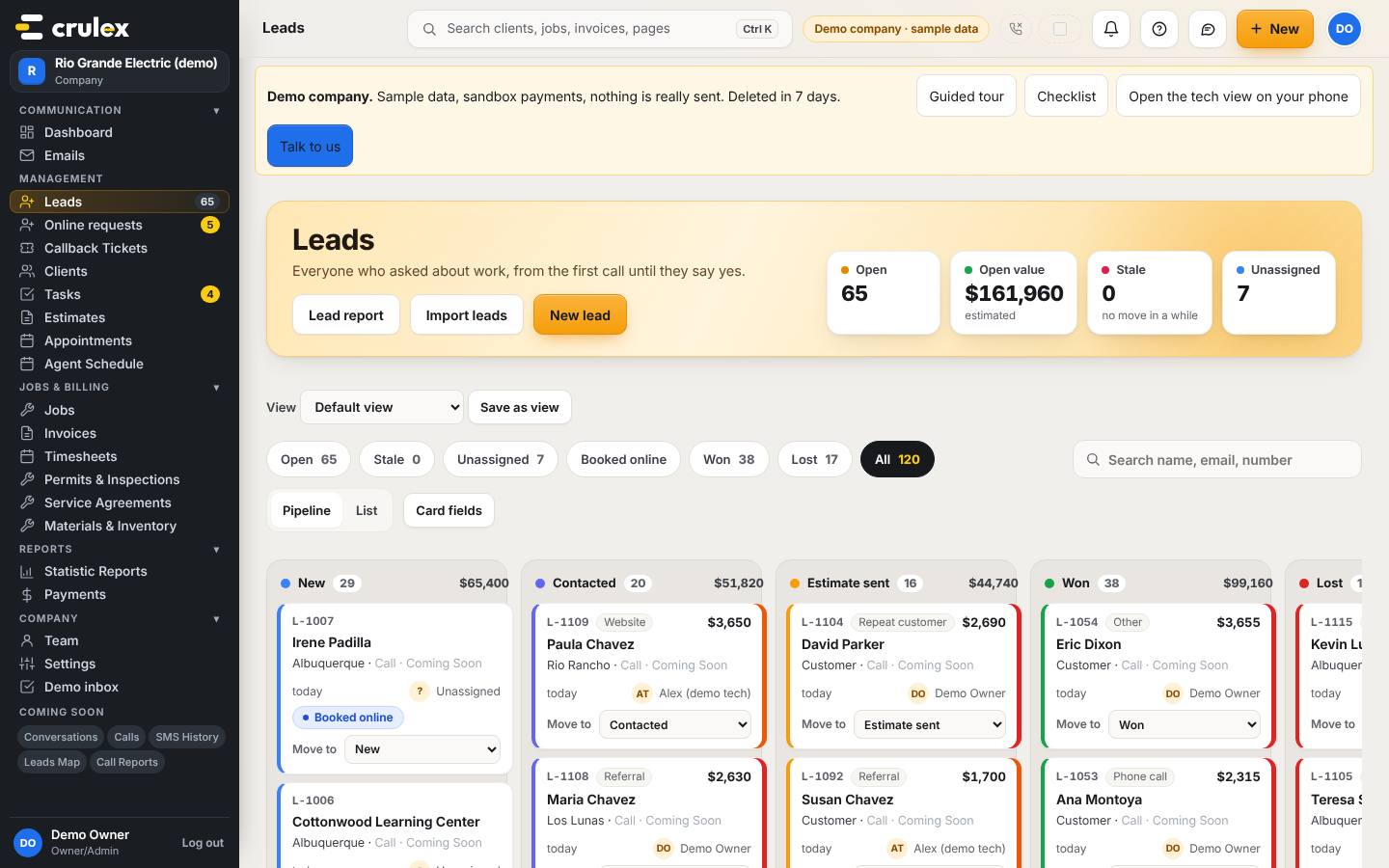
The Leads board with a column per stage, dollar totals and the filter chips - Click New lead. Fill in Lead name, Email, the street address, What do they need?, Lead source, Assign to and Estimated value ($), then click Create lead (or Save and add another). If the email or address matches someone you already have, Crulex asks whether to attach the lead to them.
- Move a lead along with the Move to box on its card. When you pick Lost, Crulex asks Why was this lead lost?. Pick a reason and click Mark as lost. The reasons show up in your lead statistics.
- Click a lead's name to open it. Change Stage and Assigned to at the top. Use the Notes tab for what was said and the Follow-ups tab to set a Follow-up with a Due date and who does it, then click Add follow-up.
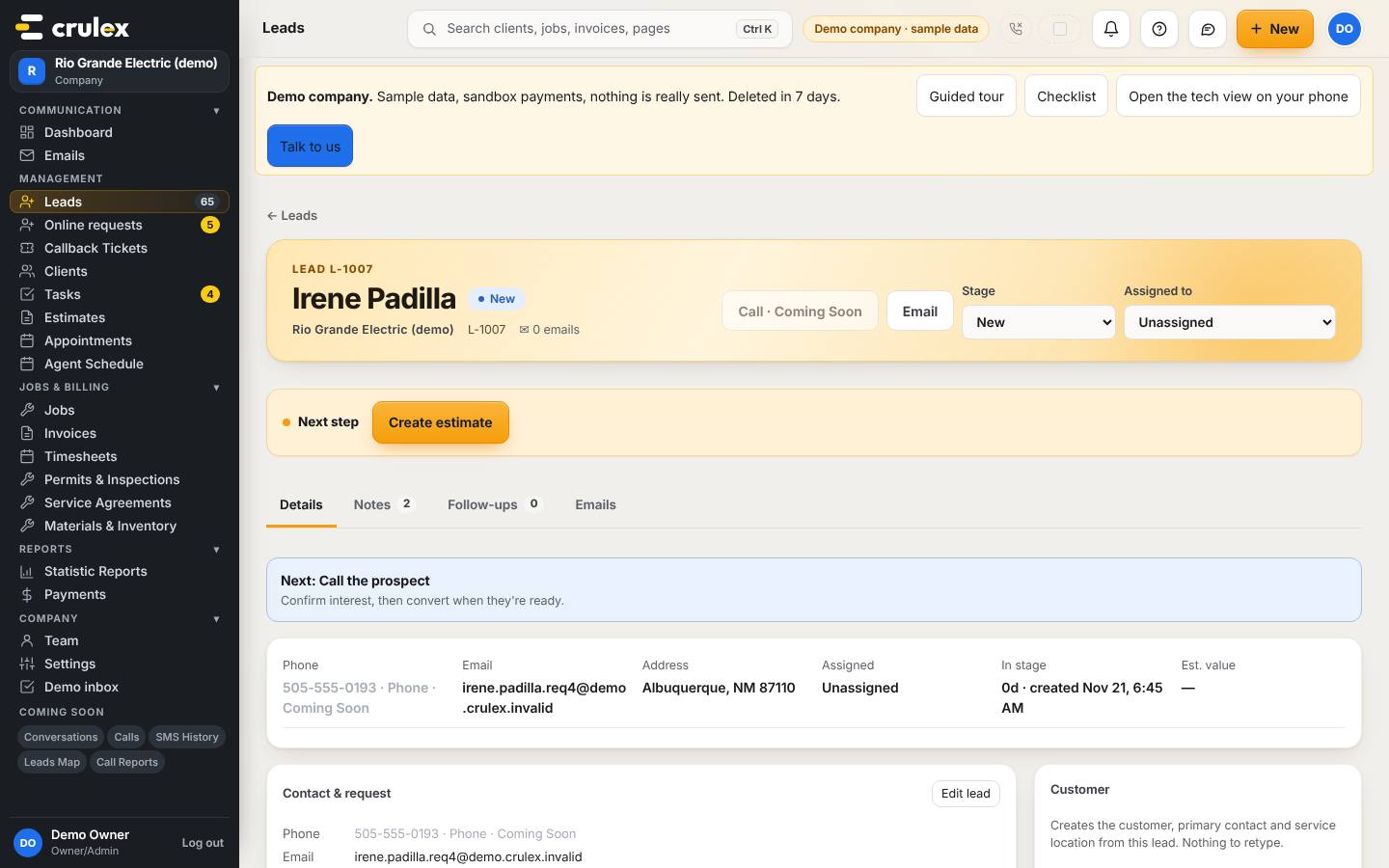
A lead's page with its stage, who it's assigned to and the Create estimate next step - When they're ready for a price, click Create estimate in the Next step bar. Crulex makes the customer, their contact and service location from the lead, starts an estimate with Good and Better options, and opens it. Nothing is retyped. If the lead is someone you already have, use Existing customer in the Customer card instead.
- To set up your booking link, go to Settings and open Booking link. Choose What customers can do, add your Services, turn on the boxes you want (Job address required, Show “How can we help?”, Show “When suits you?”), add your own questions with Add a question, then click Save booking setup. Use Copy link, Open link or the QR code to share it.
- Click Online requests in the sidebar (the number next to it is how many are waiting). Each request shows when suits them, their email and message, and an Open the lead → link.
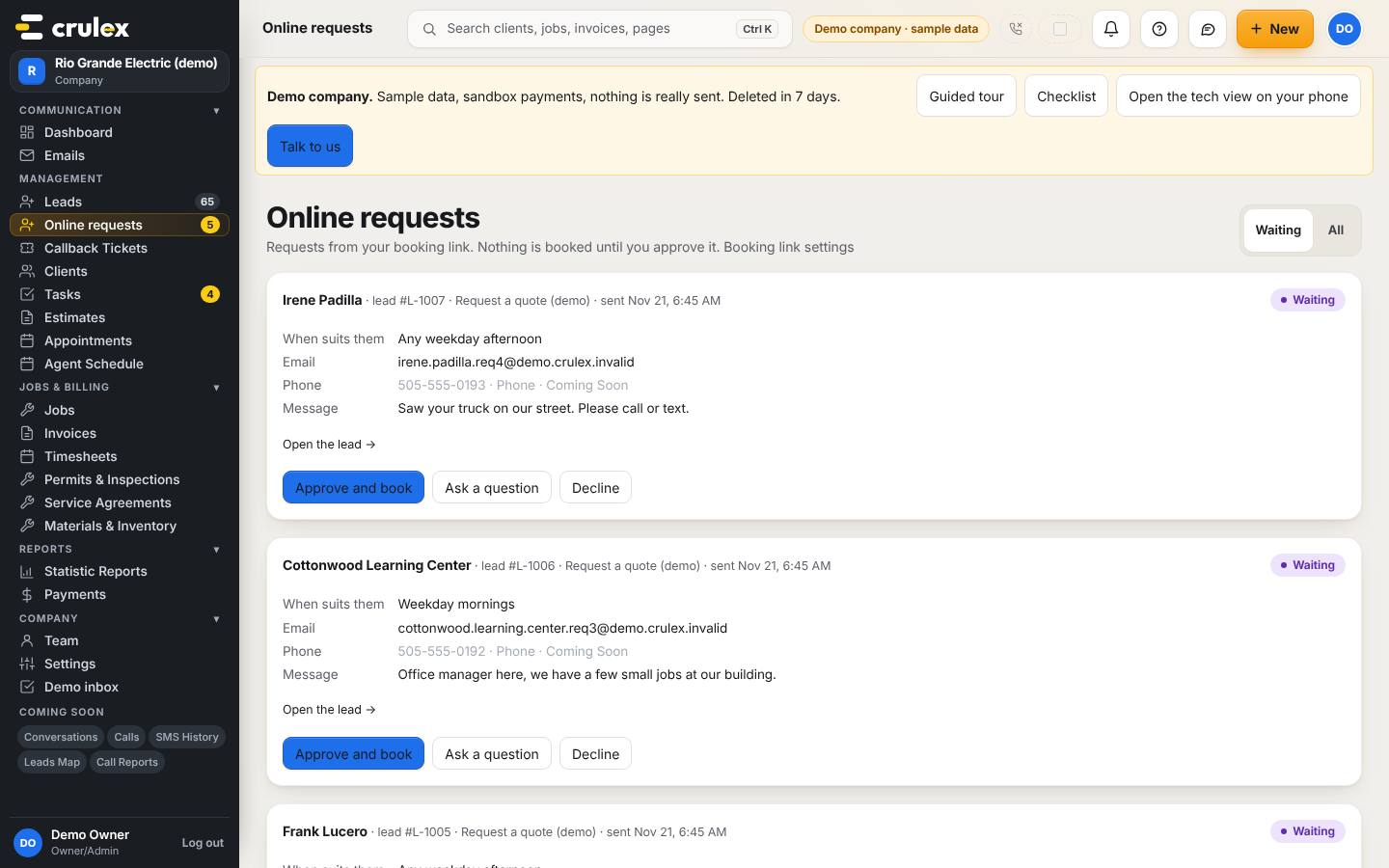
Online requests waiting, each with Approve and book, Ask a question and Decline - Click Approve and book, pick the Date, Start and Minutes, tick the technicians, and click Book and send (or untick the email box and click Book without emailing). This books a job. Or click Ask a question to email them, or Decline, give a reason only your team sees, and click Decline request.
How to check it worked
- The lead's card sits in the new column, and the column totals at the top changed.
- After Create estimate, you land on a new estimate with the customer already filled in, and the lead shows Open estimate in its Next step bar.
- An approved request moves off the Waiting tab and shows its job under All.
- Open your own booking link with Open link and send a test request: it appears under Online requests and as a new lead.
Common mistakes
- Making a second customer for someone you already have. If the lead is an existing customer, choose Existing customer in the Customer card instead of New customer.
- Leaving requests waiting. Times picked on the booking link are only held for a while (the Hold (hours) setting), so approve or decline them promptly.
- Choosing “You're booked” wording when you don't take every time people pick. Use “Request” if you want to look at each one first.
- Expecting a phone box on the booking form. Name and email are always asked; there is no phone box on a customer form.