
What it is
Statistic Reports in the menu opens your reports. Along the top you switch between Leads (where leads come from and how many you win), Item profitability (what each price book item sold for and cost), Profit and expenses (money in for the work minus what you spent) and Payments (everything that came in, covered in the getting-paid guide). Every report works on dates in your company's time, can compare with an earlier period, and can be saved as a view.
When to use it
- End of the month: you want to know what you made after expenses.
- You want to know which ad source or salesperson brings work that closes.
- You're deciding which items to price up because their margin is thin.
Before you start
- Available on: the Team and Pro plans.
- Available on: the Pro plan, for Item profitability and Profit and expenses.
- You need permission to see reports; amounts only show if your role can see prices.
- Profit only counts expenses you enter, so add your regular costs (fuel, rent, insurance) first.
Steps
- Click Statistic Reports under Reports in the menu. Use the buttons along the top to switch between Leads, Item profitability, Profit and expenses and Payments.
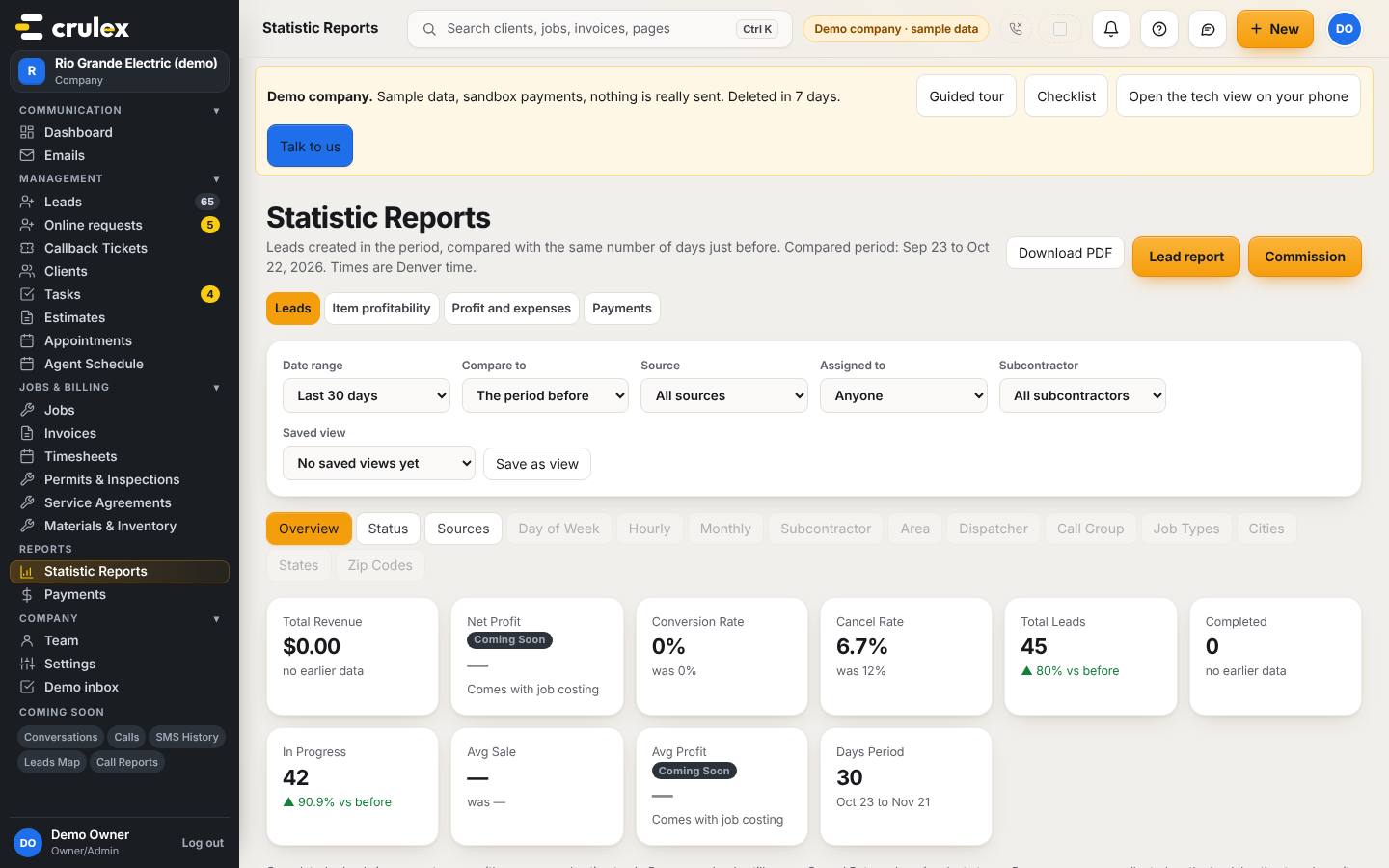
- On Leads, pick the Date range and what to Compare to (The period before or Same dates last year), narrow by Source, Assigned to or Subcontractor, and use the tabs (Overview, Status, Sources and so on). Download PDF saves what's on screen.
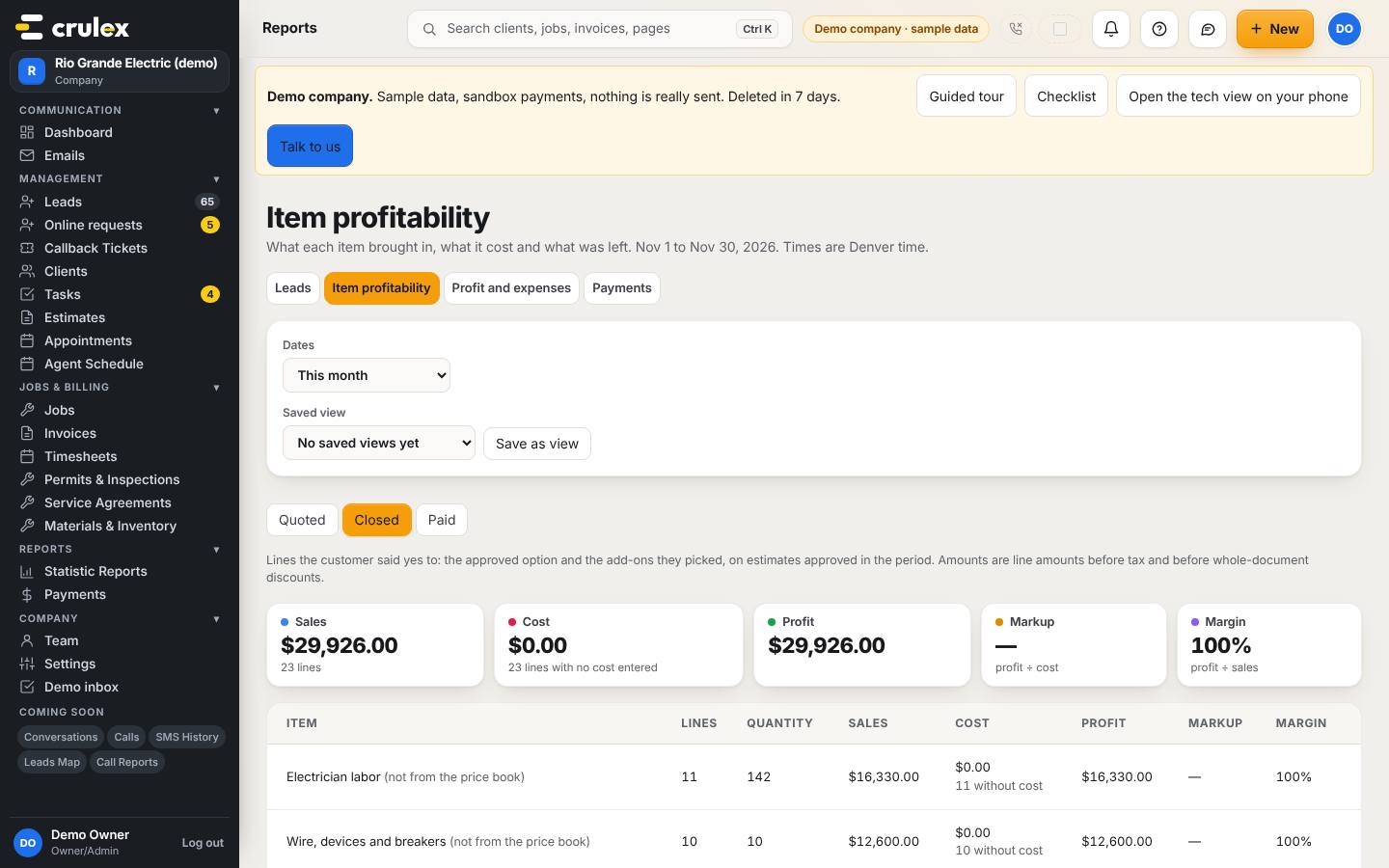
The leads report with date range, compare and filters - On Item profitability, pick Dates and a view: Quoted (on estimates sent), Closed (on approved estimates) or Paid (on invoices paid in full). Each row shows sales, cost, profit, markup and margin.
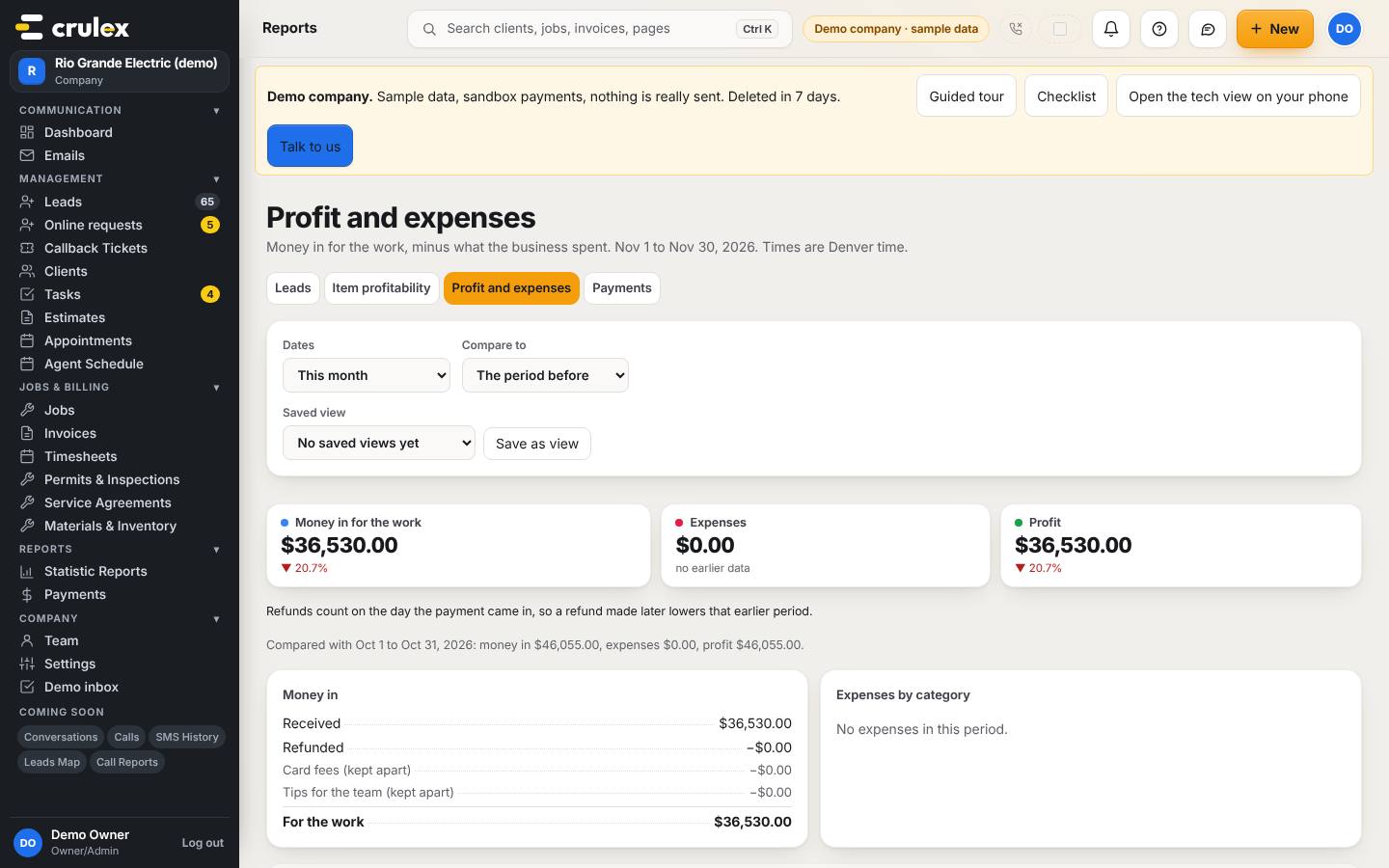
Item profitability with the Quoted, Closed and Paid views - On Profit and expenses, read Money in for the work, Expenses and Profit for the period.
- To add a cost, fill in Add an expense: Name, Category, Amount, How often (from One time to Every year), First date and, if it ends, Last date (optional). Click Add expense.
Profit and expenses with money in, expenses and profit tiles - Set the dates and filters you use often, click Save as view, and pick it next time from Saved view.

How to check it worked
- The page heading line shows the dates you picked, for example "Nov 1 to Nov 30, 2026".
- A new expense appears under Expenses by category and lowers Profit for the period.
- Your saved view appears in the Saved view list.
Common mistakes
- Expecting card fees and tips in profit. They are kept apart: profit counts only the money for the work.
- Entering a monthly cost twice. Set How often to Every month once; it counts once in each month it falls in.
- Reading item amounts as including tax. Item amounts are before tax and before whole-invoice discounts.