
What it is
Import customers (in Settings) reads a CSV file, such as a Jobber client export, a DripJobs contacts export, or any spreadsheet saved as CSV, and adds customers, contacts and properties. You see every row first and nothing is saved until you click Import. Imports never create leads and never send emails or texts. To bring in leads instead, use Import leads on the Leads screen, which works the same way.
When to use it
- You're moving to Crulex from Jobber, DripJobs or another program and want your customer list in.
- You keep customers or leads in a spreadsheet and want them in Crulex.
- An import went wrong and you want to take it back out.
Before you start
- Available on: the Pro plan.
- Export your list as a CSV file with a header row. One file can hold up to 2,000 rows and 2.5 MB; split bigger lists into parts.
- Importing customers is for the owner (it needs the Import data permission and full customer access). Importing leads needs Import data and Edit leads.
- Every row needs a name or a company name, or it's listed as a problem and left out.
Steps
- Go to Settings and click Import customers (under Customers and sales), or open the Import customers page from the settings menu.
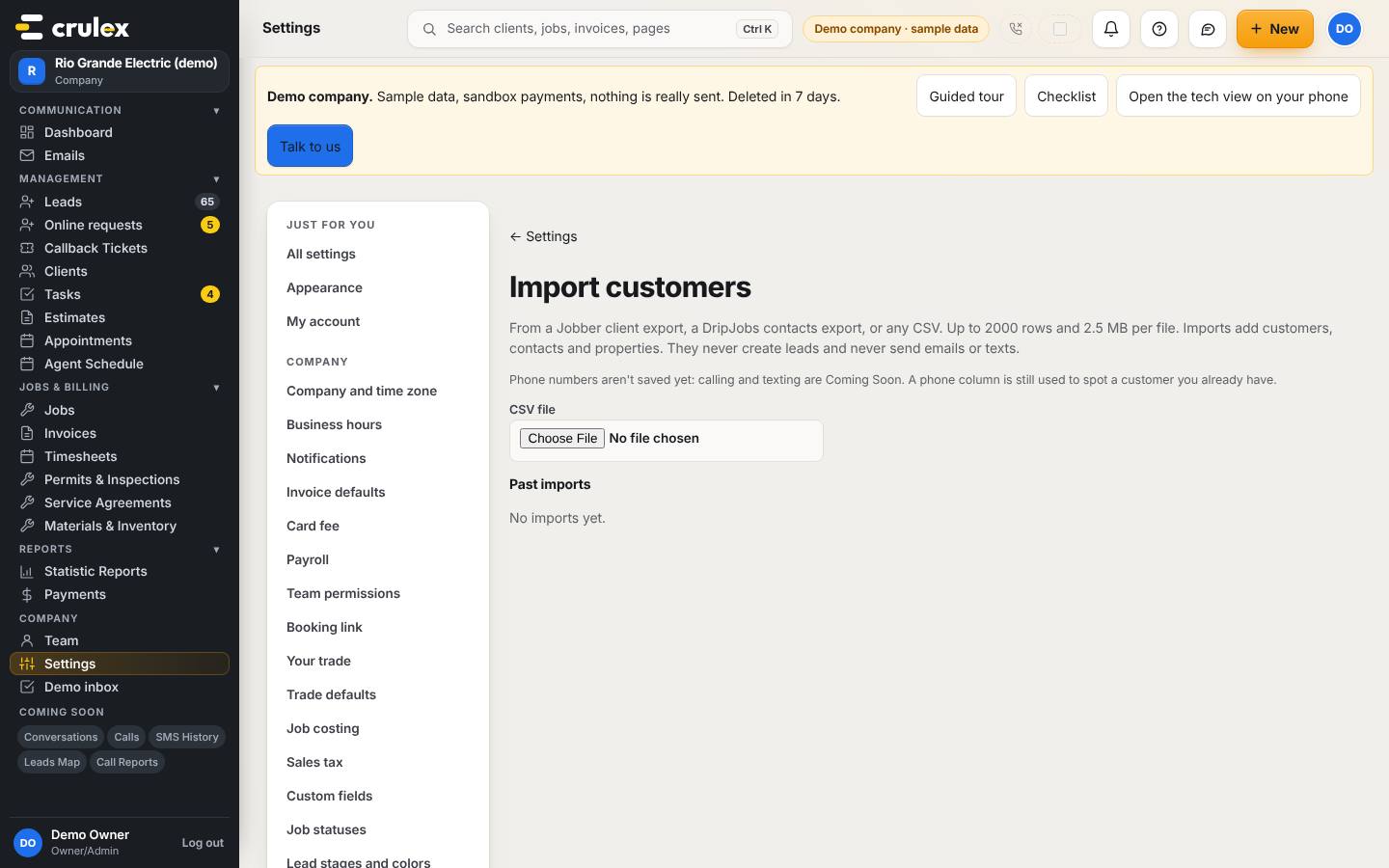
The Import customers page with the CSV file box and Past imports - Under CSV file, click Choose File and pick your export. Crulex reads it straight away and shows Check before importing.
- Check File type. Crulex picks Jobber client export, DripJobs contacts or Other CSV by itself; change it if it guessed wrong.
- Open Column matches and make sure each column from your file goes to the right box, or Don't import. For DripJobs files, check these carefully.
- Read the summary line (new customers, properties, added to existing customers, skipped, with problems) and the Rows list. Each row says New customer, Adds a property, Already a customer or Problem, with the reason.
- If some rows have problems, click Download problem rows (CSV), fix them in your spreadsheet, and import that file afterwards.
- Click Import (it shows how many customers, for example Import 25 customers). Crulex says Imported 25 customers and 30 properties.
- To take an import back out, find it under Past imports and click Undo import, then confirm. Customers someone has changed since the import are kept and listed.
- To bring in leads instead, open Leads and click Import leads. The page works the same way: choose the file, check the rows, then import.
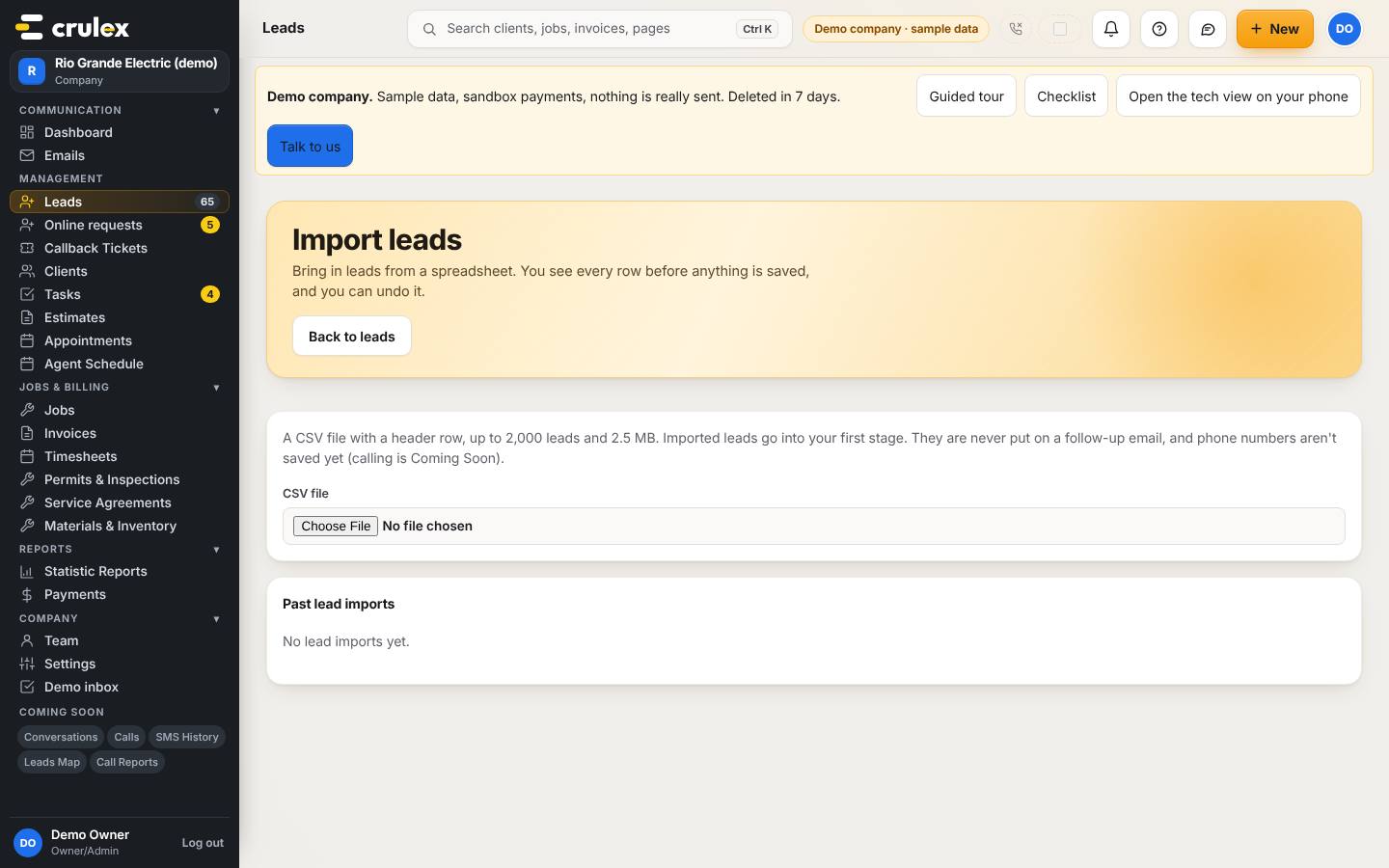
The Import leads page reached from the Leads screen
How to check it worked
- The page says Imported … customers and … properties, and the file shows under Past imports with its date and counts.
- The customers appear in your Clients list.
- After an undo, the import under Past imports says undone with the date.
Common mistakes
- Expecting phone numbers to come in. Phone numbers aren't saved yet (calling and texting are Coming Soon); a phone column is only used to spot a customer you already have.
- Importing the same file twice. Crulex notices: This exact file was already imported, and importing again does nothing.
- Missing the two skipped checks. Imported customers don't get tax rates looked up for their addresses, and required custom fields aren't enforced. Review them after importing.
- Expecting imported leads to get follow-up emails. Imported leads go into your first stage and are never put on a follow-up.