
What it is
The Team page lists everyone in your company, their role, and invitations still waiting. Each person has a role (Owner/Admin, Office Manager, Dispatcher, Sales/Estimator, Technician or Bookkeeper) that decides what they can see and do. Team permissions shows what each role can do and lets the owner change it. The Field app QR code helps technicians open the field app on their phone.
When to use it
- You hired someone and want them in Crulex.
- A person's job changed and they need more or less access.
- A new technician needs the field app on their phone.
Before you start
- Have each person's email address. They get their own login; never share yours.
- Inviting people and changing access is for the owner (an office manager can invite non-admin roles).
Steps
- Click Team in the side menu, then click Invite user.
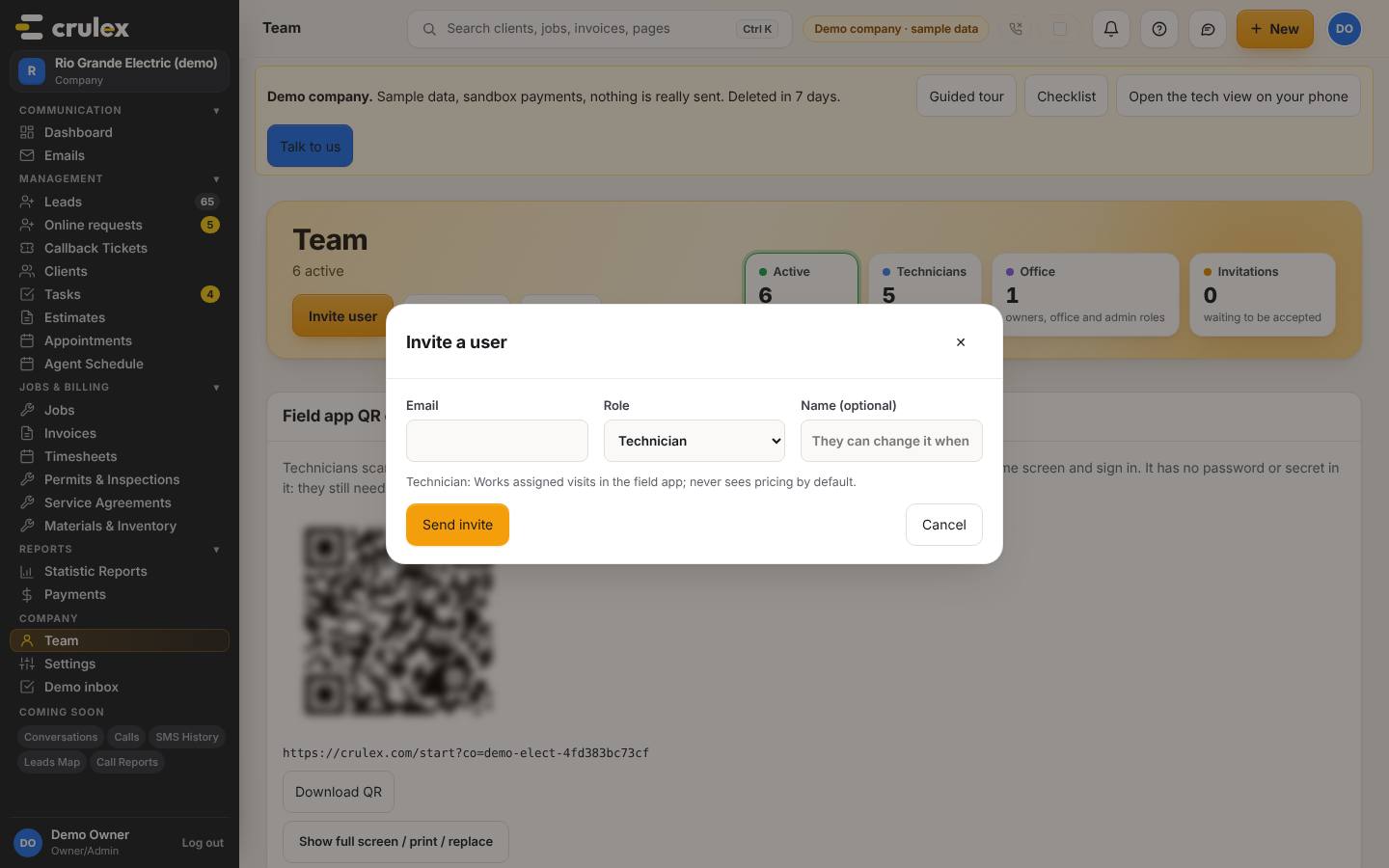
The Invite a user form with email, role and name - Type their Email, choose a Role (the line under it says what that role does), add a Name (optional), and click Send invite.
- The invitation shows under Pending invitations until they accept it. It expires after 7 days; click Cancel invite to withdraw it.
- To change someone's role, click Edit on their row, choose a new Access level, and click Save. Remove takes them off the team.
- Click Permissions at the top of the Team page to see what each role can do. The owner can switch whole groups on or off for a role with the switches, and click a group's name to see what's in it.
On a phone: Each role's card starts closed; tap Show groups to see its switches.
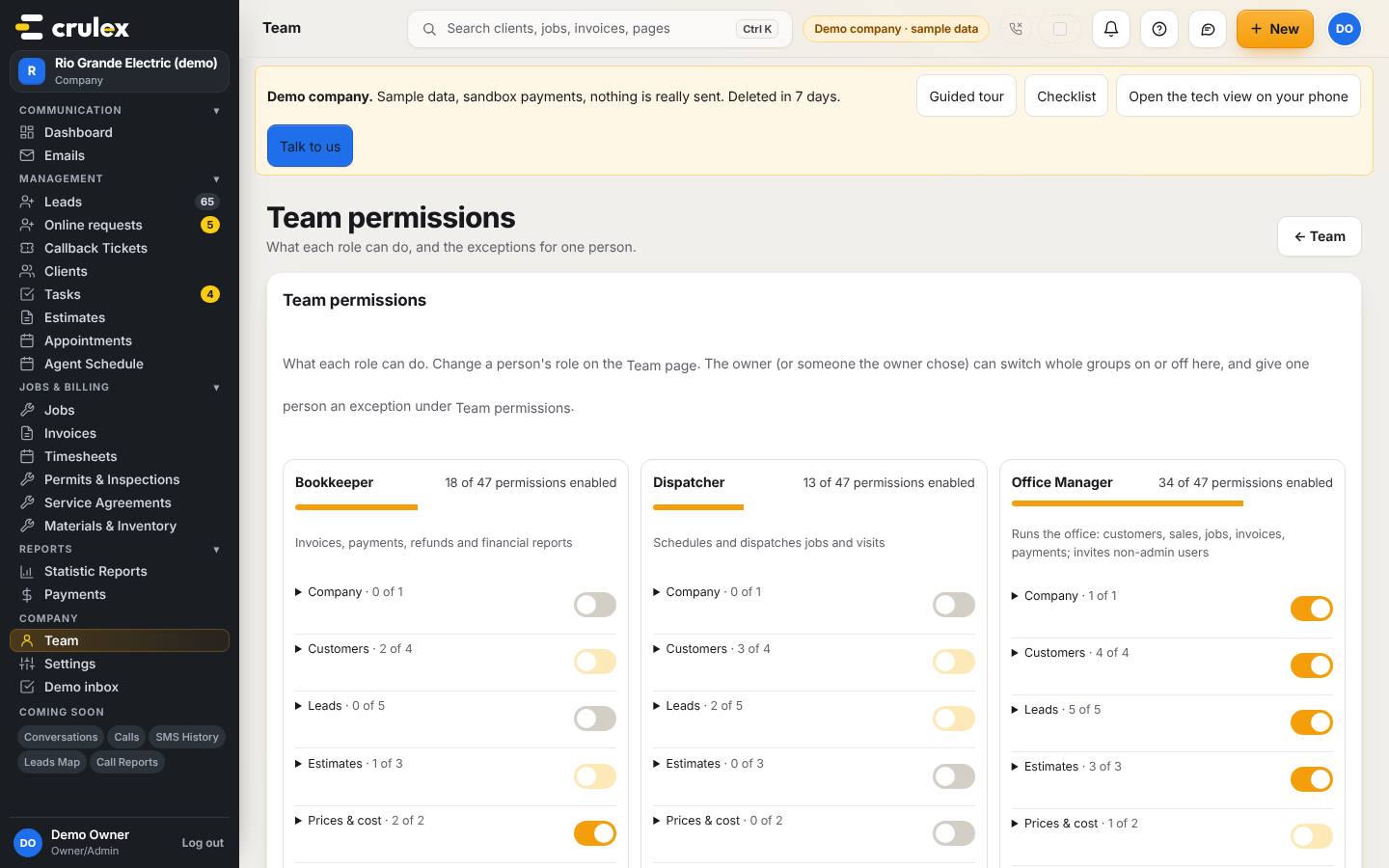
Team permissions with a card for each role and group switches - To give one person an exception, go to Edit access on the same page, click People, and choose them under Person.
- For technicians, scroll to Field app QR code on the Team page. They scan it with their phone camera, add the app to the home screen and sign in with their own login. Click Download QR or Show full screen / print / replace to print it.

How to check it worked
- The Invitations count at the top of the Team page goes up, and the person shows under Pending invitations with an expiry date.
- Once they accept, they move to People with the role you chose.
- A role's card on Team permissions shows the new count, for example "13 of 47 permissions enabled".
Common mistakes
- Giving everyone Owner/Admin. Pick the smallest role that does the job; technicians never see prices by default.
- Treating the QR code as a password. It only opens the app; everyone still signs in with their own account. If a printed code gets out, use Replace QR code on the full-screen page.
- Trying to change your own access. Nobody can; ask the owner.
- Inviting the same email twice. Cancel the old invitation first, or wait for it to expire.