
What it is
Automations do routine follow-up for you. Each one starts on something that happens (an estimate is sent, a job is completed, an invoice is paid) and then sends the customer an email, creates a task, or posts a notice in your team's bell. The Automations page also holds the built-in office alerts, the overdue invoice reminders, review requests, and a run log of everything that was sent.
When to use it
- You want estimates followed up a few days after they're sent, without remembering to do it.
- You want customers reminded when an invoice is past due.
- You want happy customers asked for a Google review after they pay.
- You want the office told when a customer approves an estimate or opens an invoice.
Before you start
- Available on: the Team and Pro plans.
- You need a role that can change company settings (the owner can by default).
- Add a contact email under Logo, address and invoice look in Settings, so customers' replies reach you.
- For review requests, have your Google review link ready. In Google Business Profile, choose Ask for reviews and copy the link.
Steps
- Go to Settings and click Automations (in the settings menu or the tiles). The page opens on Office alerts: built-in notices like Estimate signed and Invoice paid. Untick On to stop one.
On a phone: The settings menu is a row of buttons across the top; swipe it sideways to find Automations.
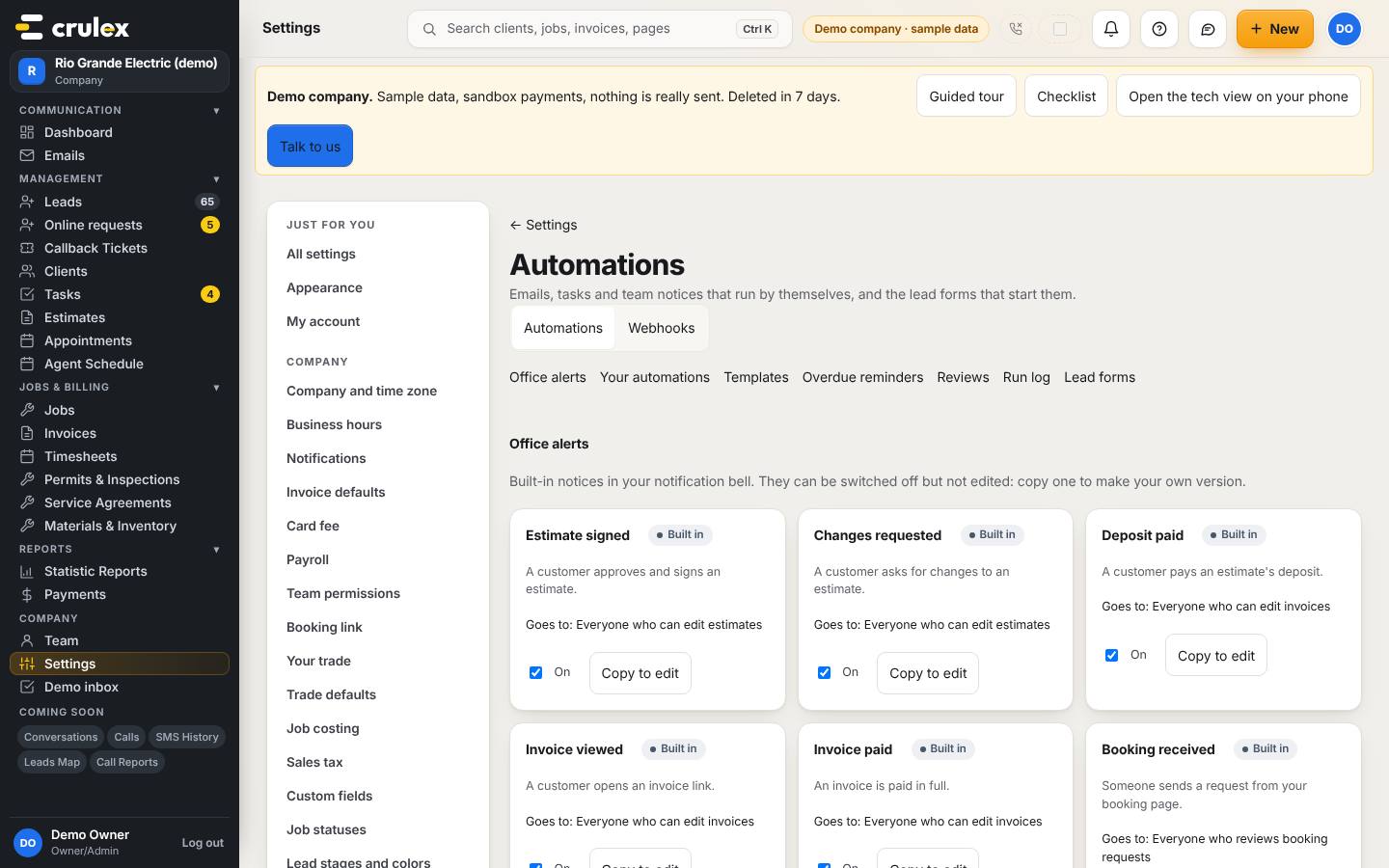
The Automations page showing the built-in office alerts - Click Templates at the top to jump to the Template gallery. Pick one (for example Job done: thank you) and click Use this template. Your copy is added under Your automations, switched off.
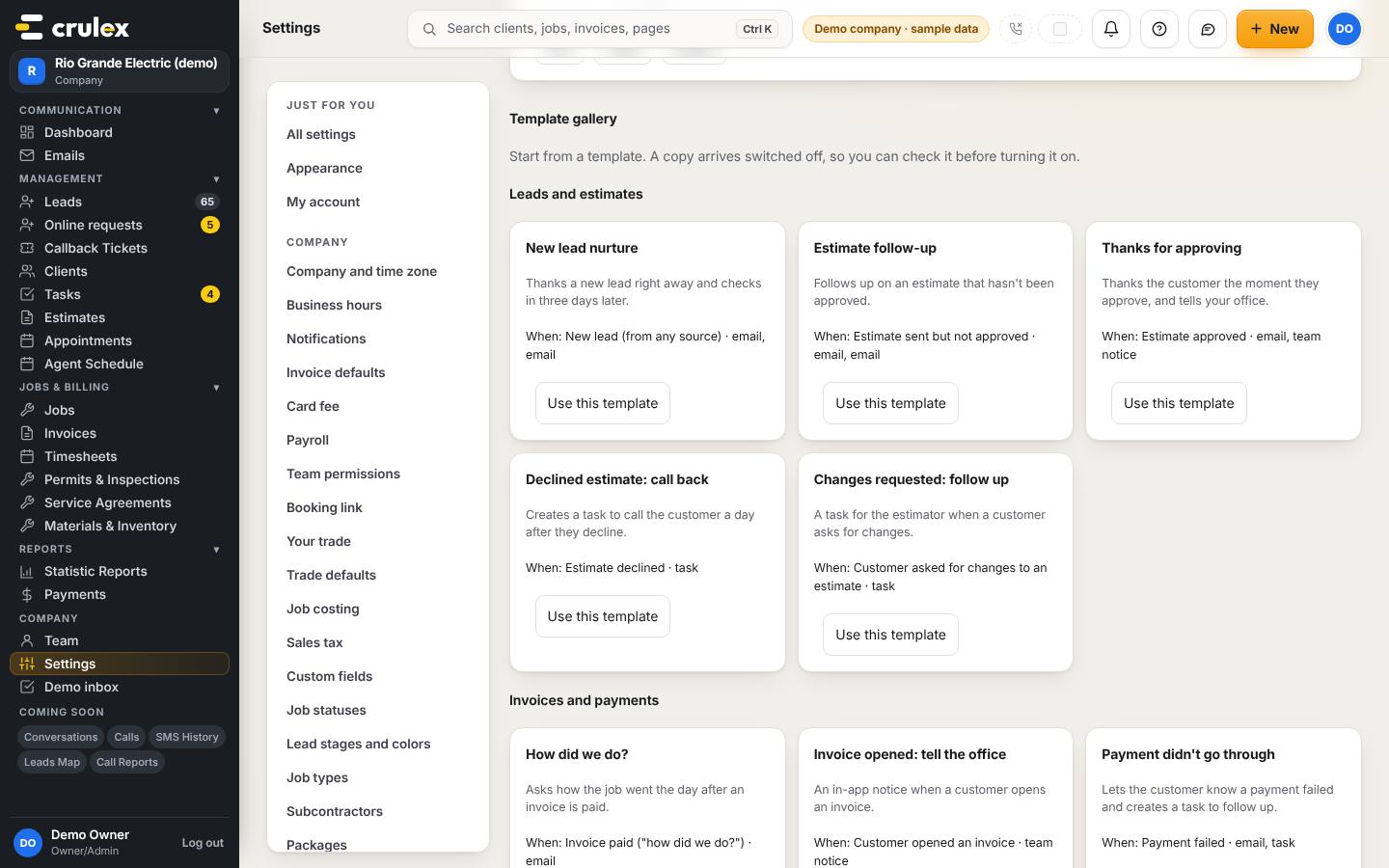
The template gallery with Use this template buttons - To start from scratch instead, choose the event in New automation, when and click Create.
- In the editor, set Wait (hours), choose the Action (Send the customer an email, Create a task or Notify my team), and write the Subject and Message. Fill-ins like {{first_name}} are listed under the message. Use Add conditions to limit a step to an amount, a job type or certain days and hours.
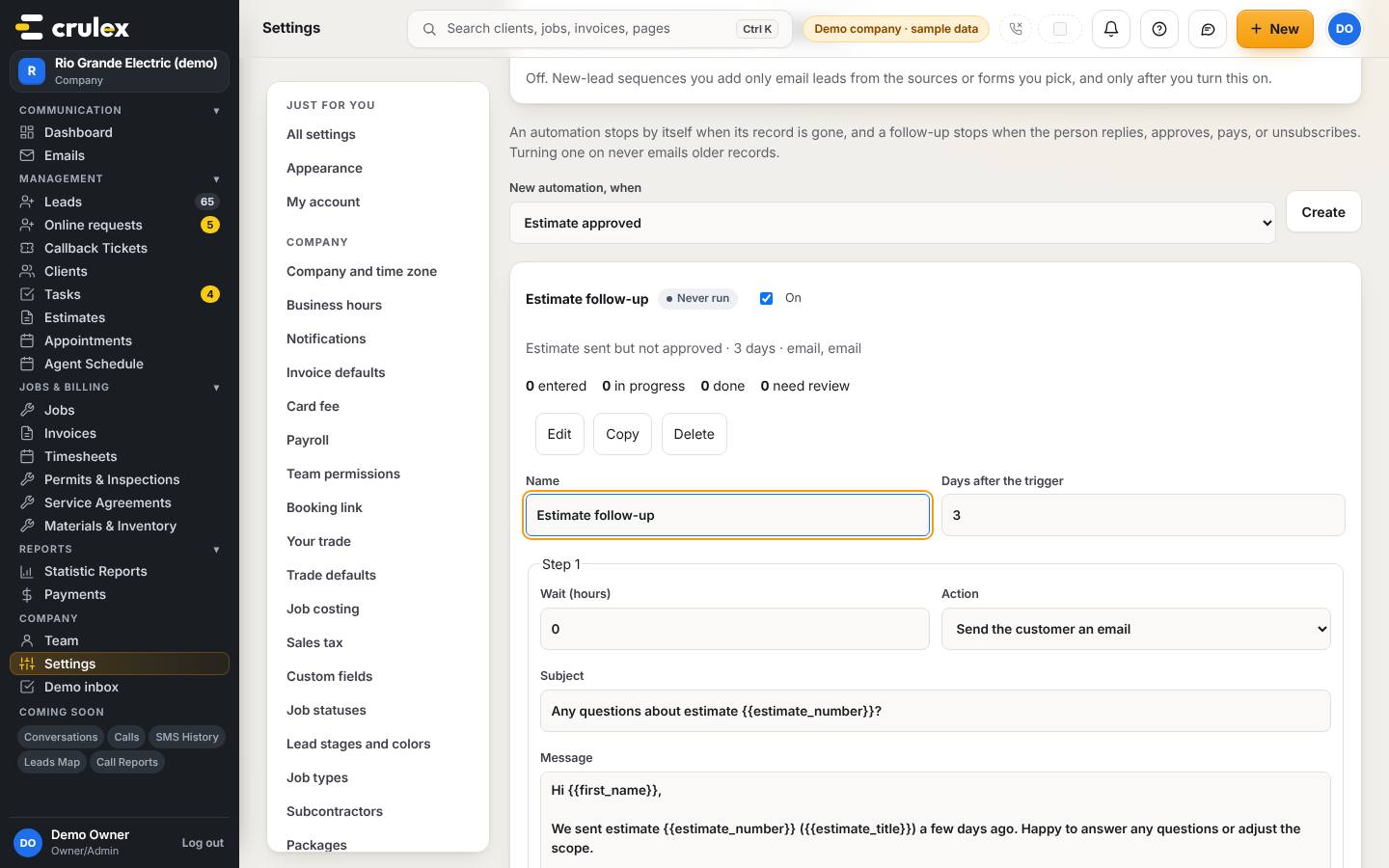
An automation open in the editor, with wait, action, subject and message - Check the box under the steps. When it says Ready to turn on, click Save and turn on. If something is missing, it lists what to fix and the button stays greyed out.
- For late payers, go to Overdue reminders, type the days after the due date (up to 5, for example 1, 7, 14) and click Save and turn on.
- For reviews, go to Reviews, paste your Google review link into Your Google review link, check the hours, subject and message, and click Save and turn on.
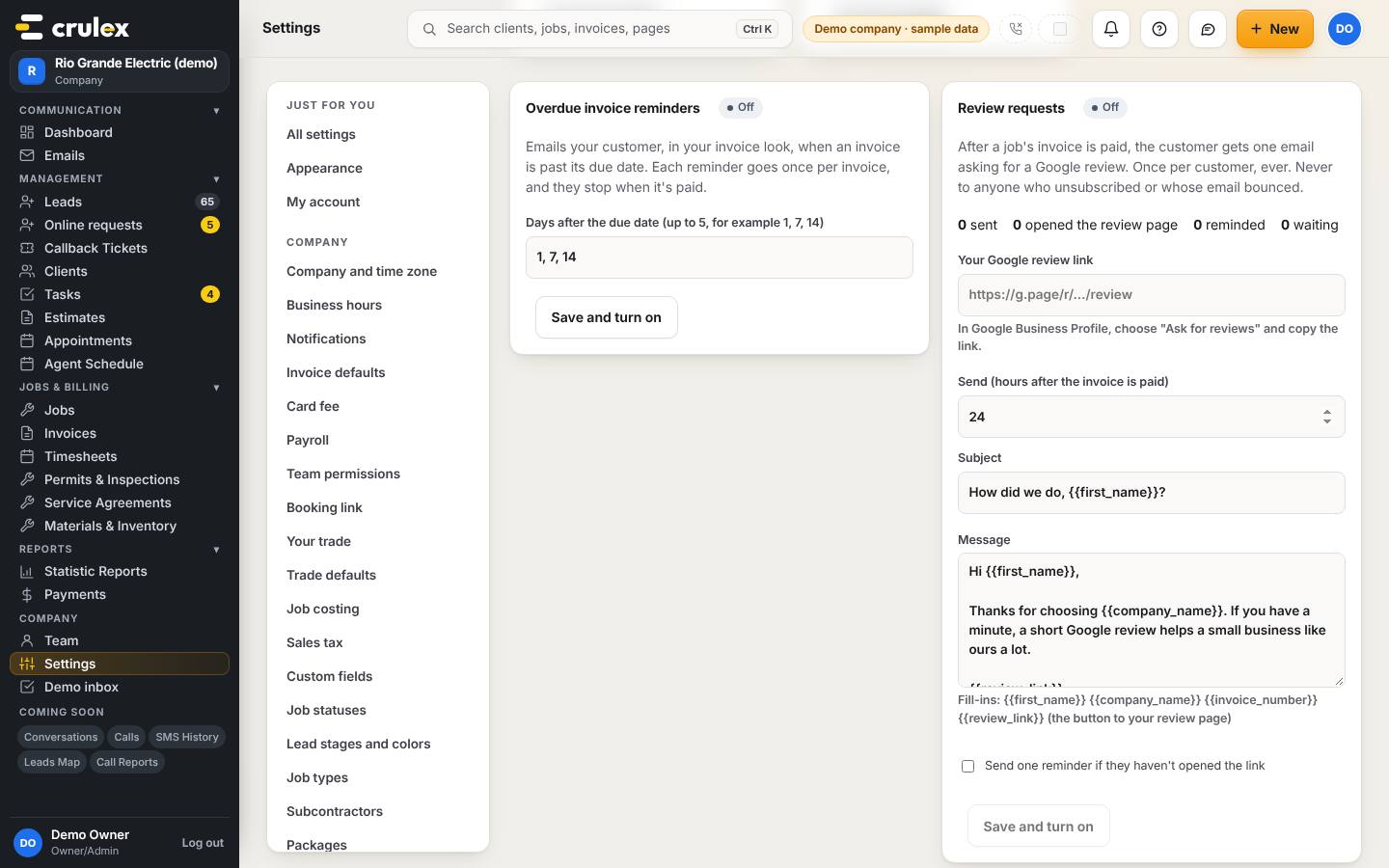
The Review requests card with the Google review link box - Later, open Run log to see every email that went out and its result. Tick Only problems to see just the failures; some can be sent again with Retry.

How to check it worked
- The automation's card shows On ticked, and its counters (entered, in progress, done) start to move as records come in. Until then it shows Never run.
- Overdue invoice reminders and Review requests show a green On label after you save.
- The Run log lists each email with its result in plain words.
Common mistakes
- Expecting a new automation to email older records. Turning one on only acts on things that happen from then on.
- Pasting your website or a Google search link as the review link. It has to be your Google review link (it starts with https://g.page/r/, https://search.google.com/local/writereview, https://maps.app.goo.gl/ or https://www.google.com/maps/).
- Wondering why a customer got only one review request. Crulex asks each customer once, ever, and never anyone who unsubscribed or whose email bounced.
- Choosing a text message step. Texting isn't available yet, so an automation with a text step can't be turned on.